Every team has knowledge that sits in heads, mail attachments and loose documents. A knowledge base puts it in one place, searchable and with an owner. In Canvos that is the Knowledge module: a Confluence-style wiki with spaces and pages, in which you link documents straight from your Nextcloud. The difference with a standalone wiki is that the knowledge base does not sit next to your policy but inside it: Nextcloud itself enforces the rights, and classification, DLP, watermark, retention and audit log apply to every page. This guide walks through all of it in thirteen steps.
Step by stepThirteen steps
1. Open the knowledge base 2. Create a space 3. Members and roles 4. Write a page 5. Markdown, if you prefer it 6. Link a document from Nextcloud 7. Classification and review 8. Save 9. Restrict a page 10. DLP and legal hold 11. History and restore 12. Search 13. Administration in the Governance Center
Open the knowledge base
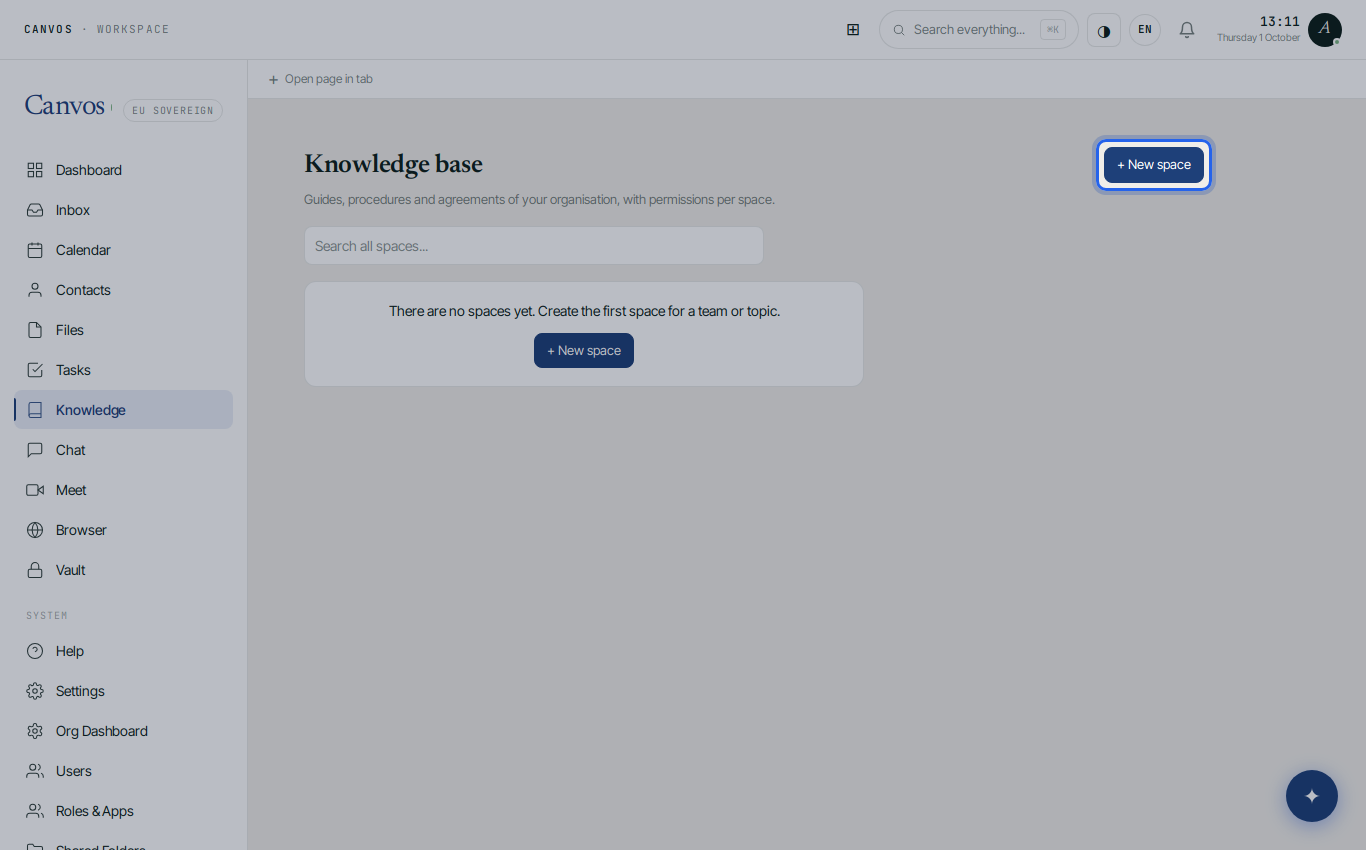
Click Knowledge in the sidebar. You see the spaces you have access to: one space per team or topic, such as Handbook, Client procedures or IT. At the top you search across all spaces at once.
Create a space
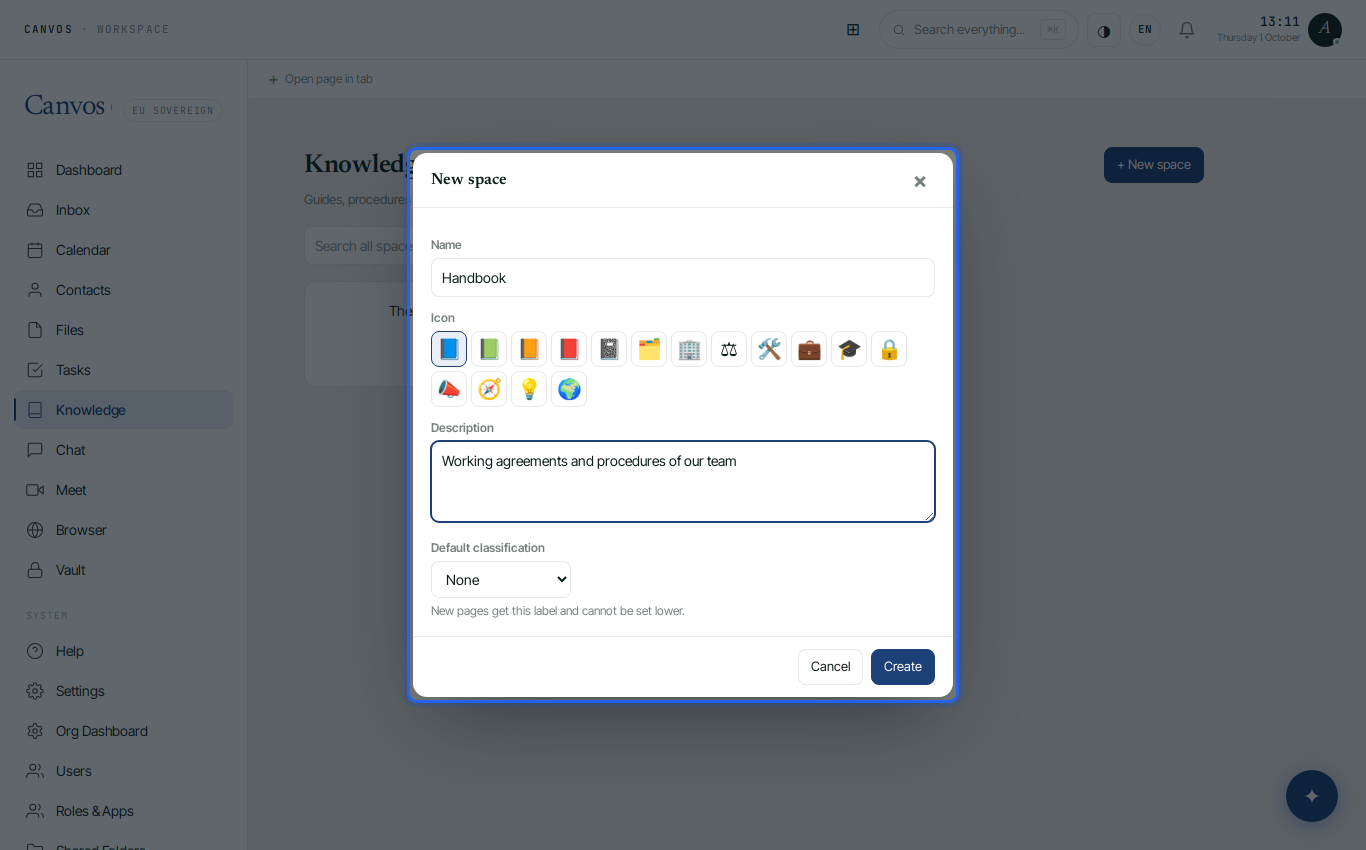
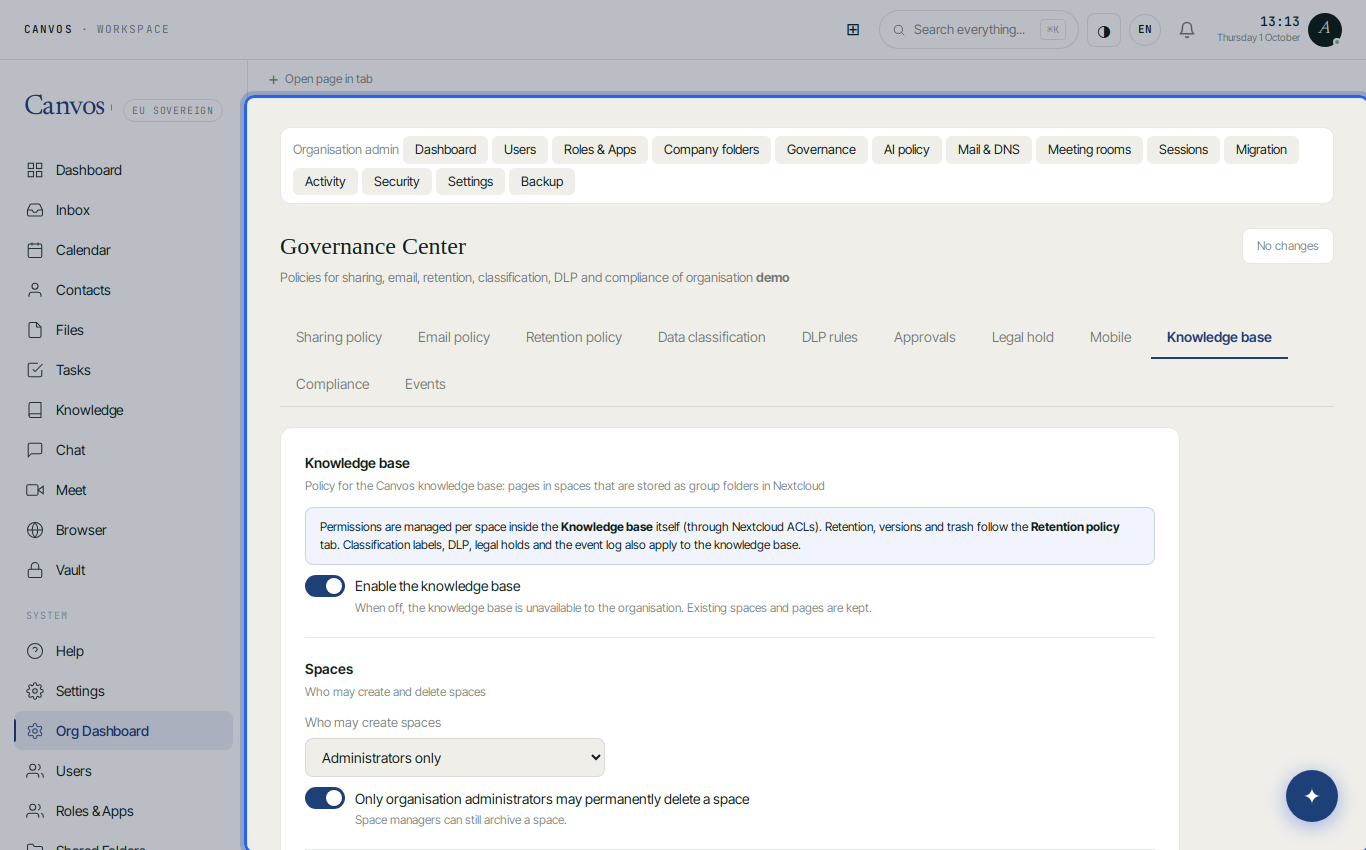
Click New space and enter a name and a short description. Optionally choose an icon and a default classification for all pages. By default only administrators may create spaces; that is a setting in the Governance Center. Behind the scenes a space is a shared folder in Nextcloud, so everything you write here is also available as ordinary files in your own storage.
Members and roles
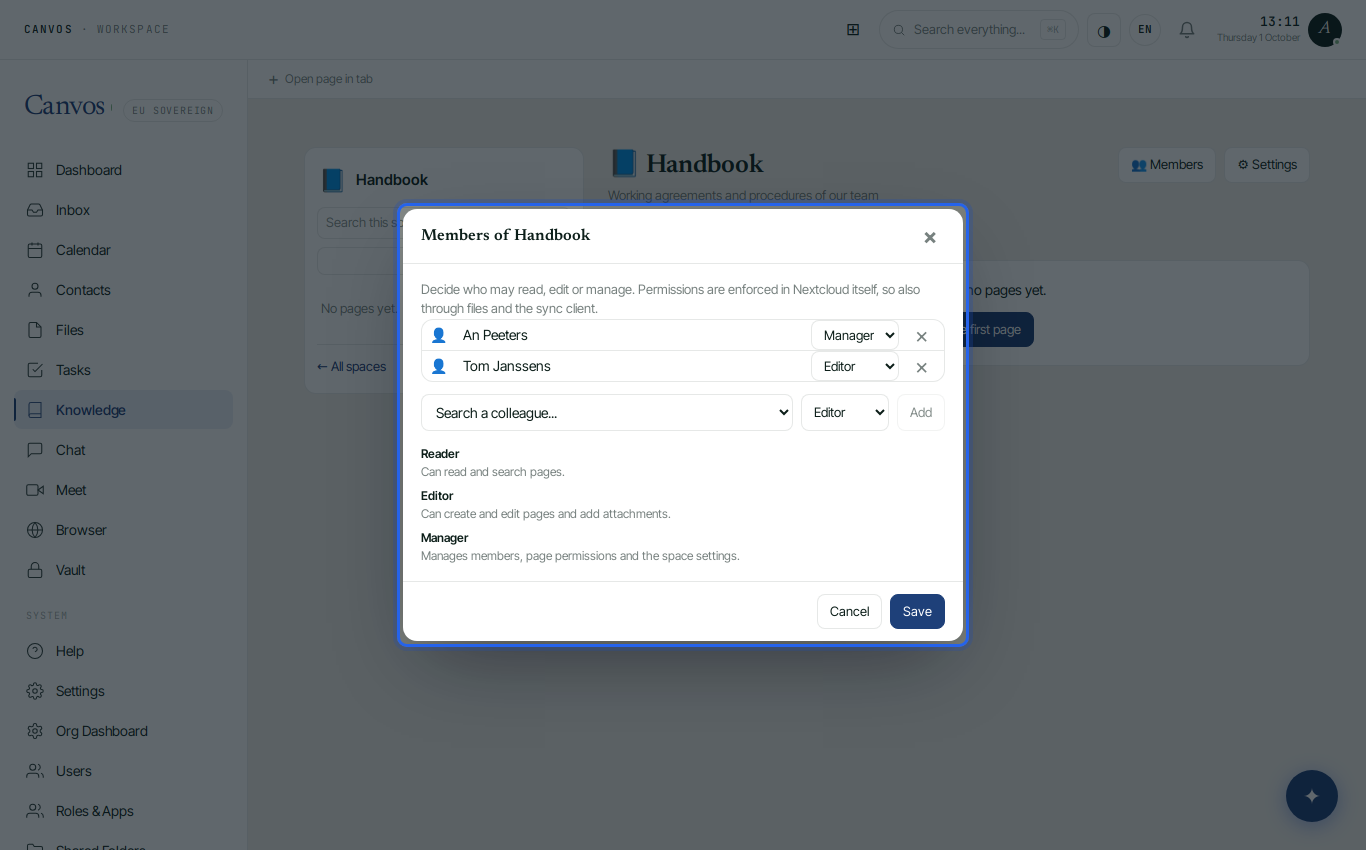
In the space click Members. Add colleagues or the whole organisation with a role: reader (read and search), editor (create and edit pages, add attachments) or manager (members, page rights and settings). Because Nextcloud itself enforces the rights, they also apply to the files, the sync client and search.
Write a page
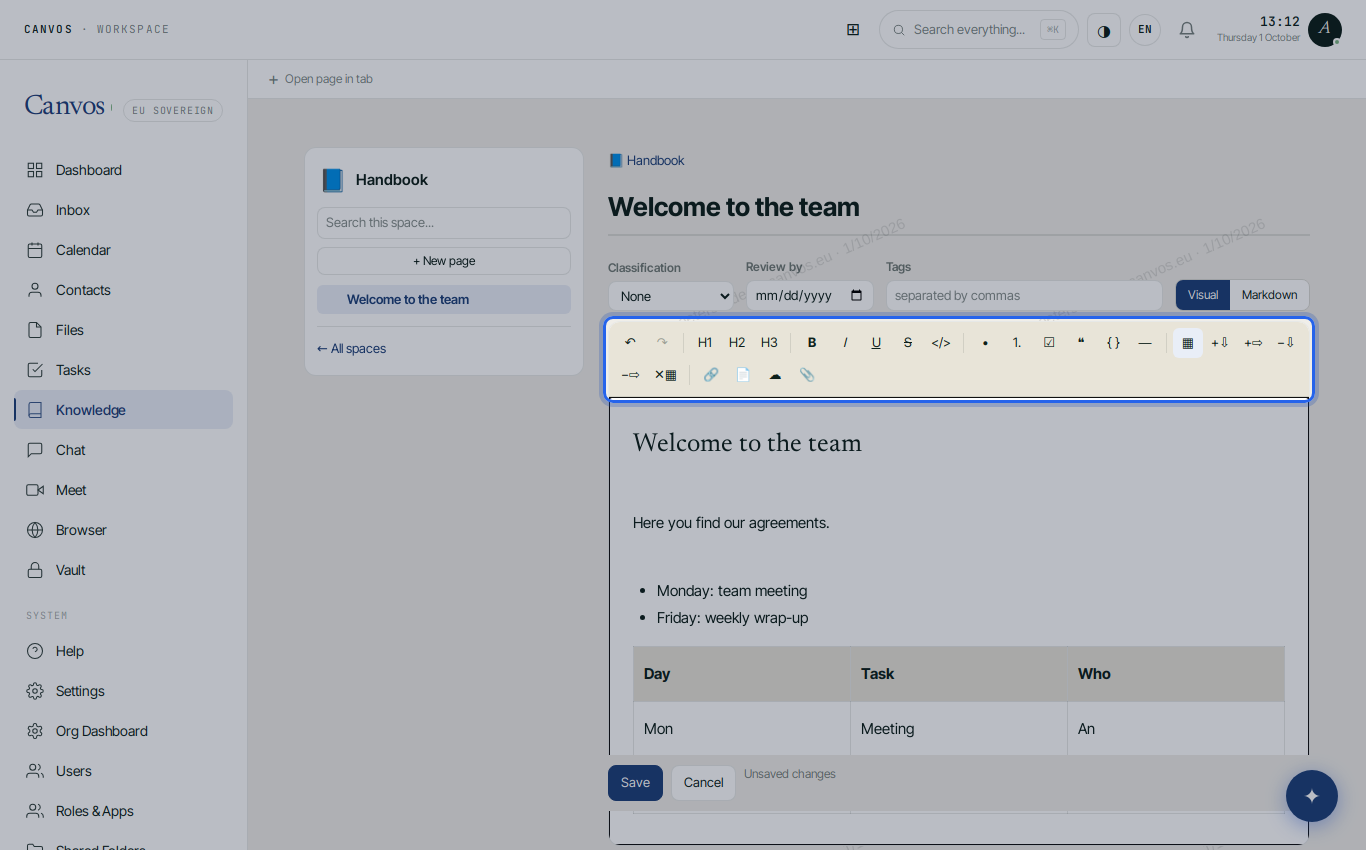
Click + in the tree on the left and give the page a title. The editor works like a word processor: headings, lists, task lists, tables, quotes and code through the toolbar. If you know Markdown, simply type # for a heading or - for a list. With + Subpage you build a hierarchy.
Markdown, if you prefer it
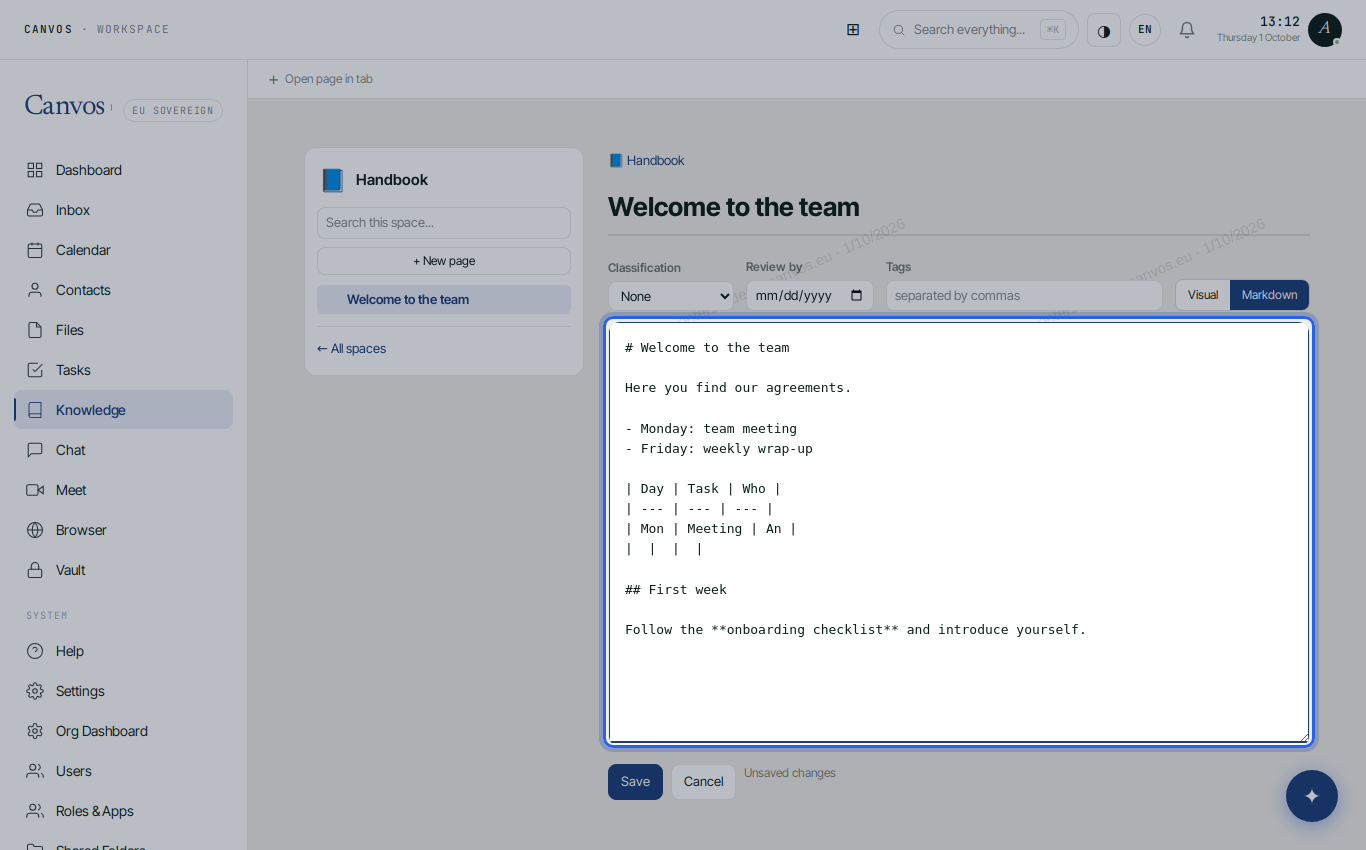
Above the editor you switch between Visual and Markdown. In the Markdown view you see and edit the source text, handy for pasting existing documentation. Switch back and everything is formatted again. Nothing is lost, tables and images included.
Link a document from Nextcloud
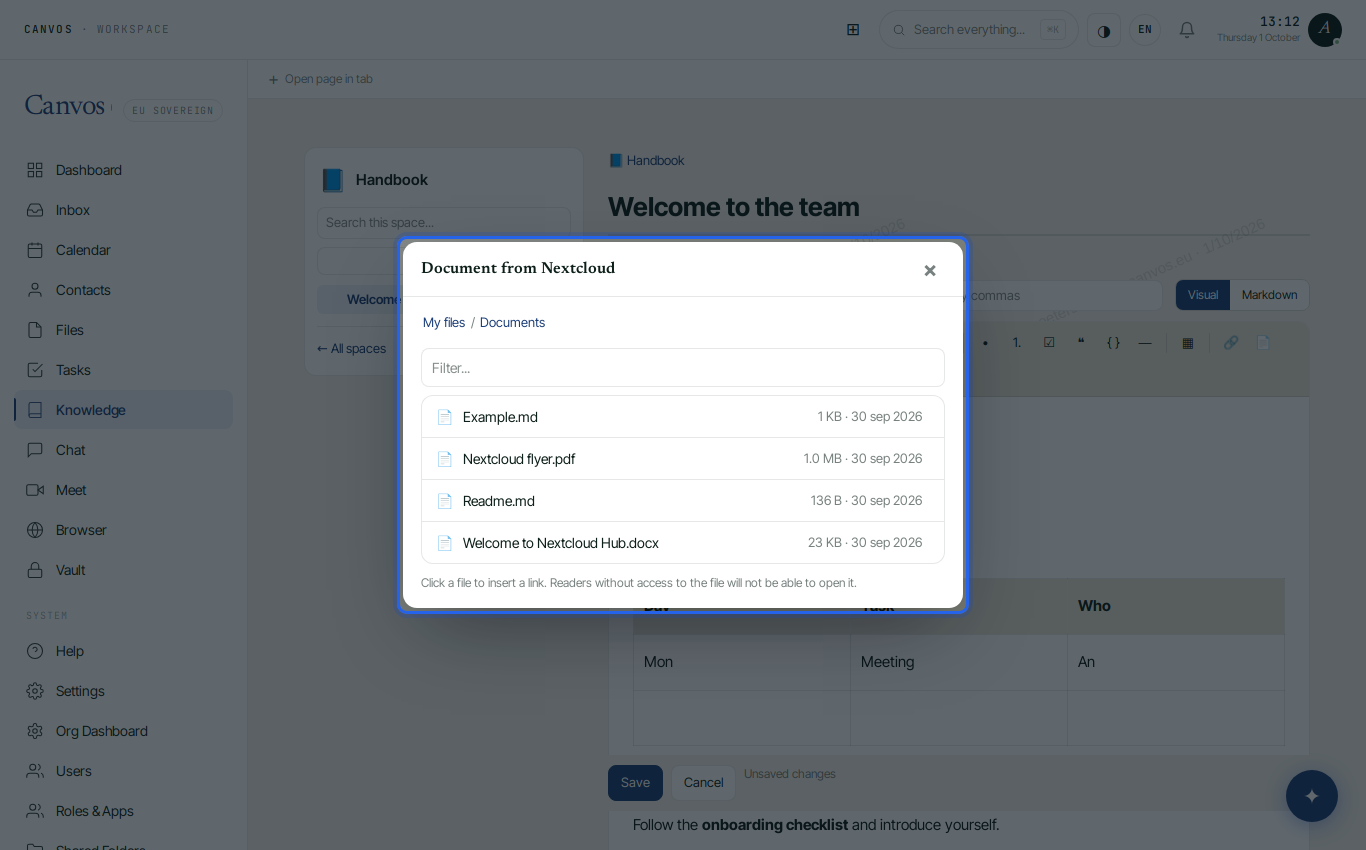
Click Nextcloud document in the toolbar. Browse your own files, click a file and the link is in the text. The file is not copied: you point to the living version. Readers without access to that file cannot open it, so nothing leaks through a link. You upload attachments and images straight into the page, and with Link to page you point to another page in the knowledge base.
Classification and review
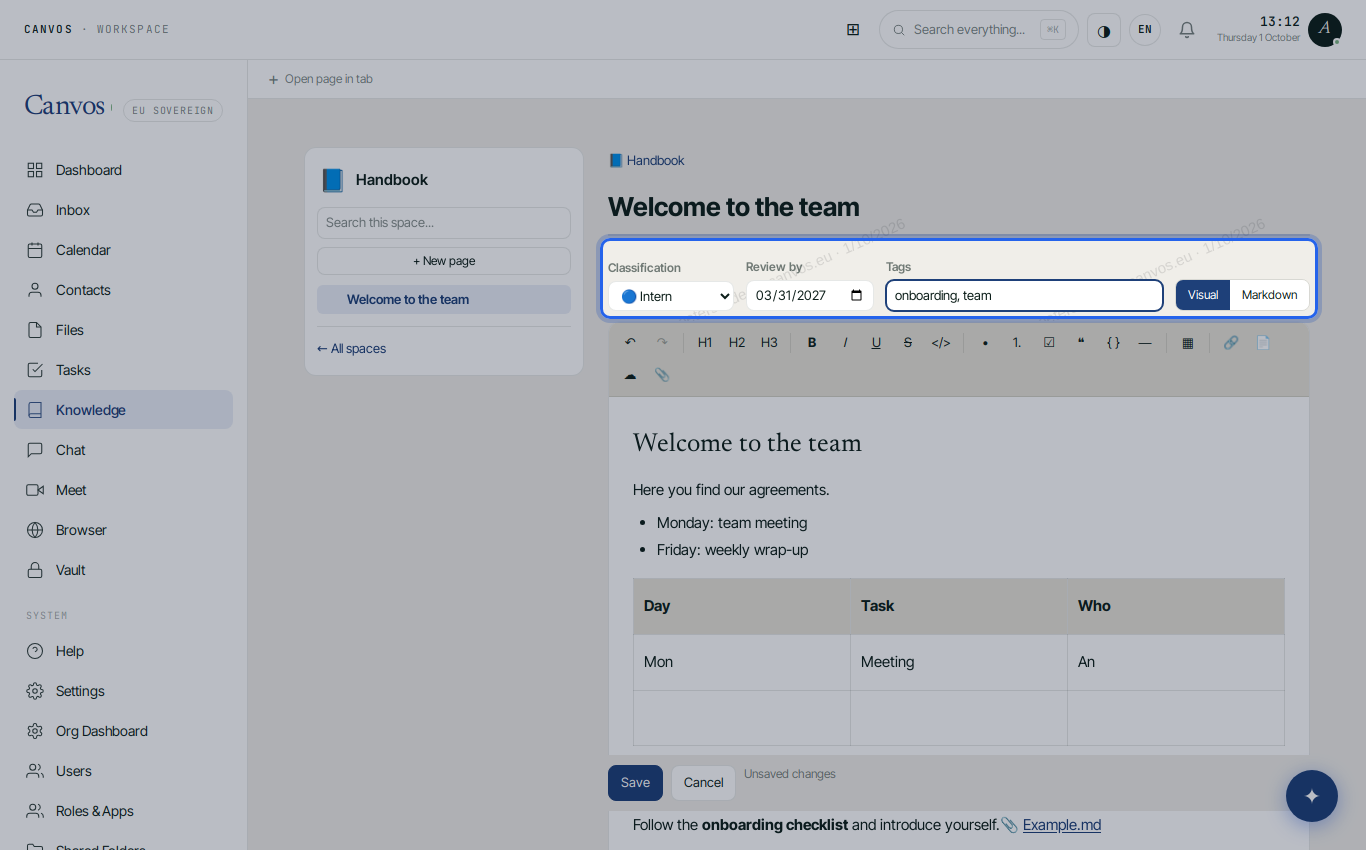
In edit mode you choose a classification (for example Internal or Confidential), a Review by date and tags. The classification is the same as in the rest of Canvos and also decides what may happen with the page, such as downloading attachments. If the space has a default classification, a page cannot be set lower.
Save
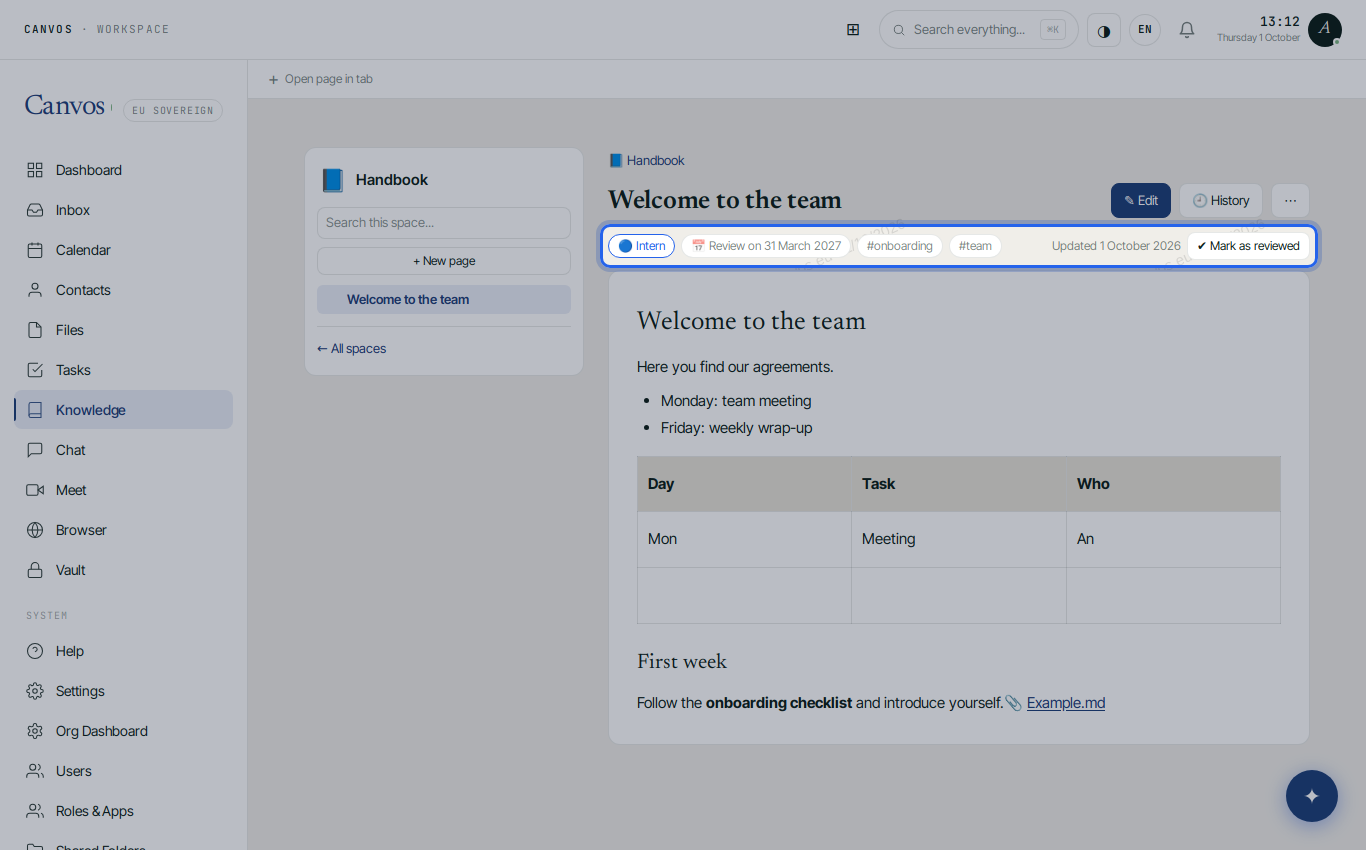
Click Save. The page shows the label, the review date, the tags and, if the policy asks for it, a watermark with the reader's name. When the review date has passed, the page gets a red notice and appears on the space page under Review needed. With Mark as reviewed you confirm the content is still correct.
Restrict a page
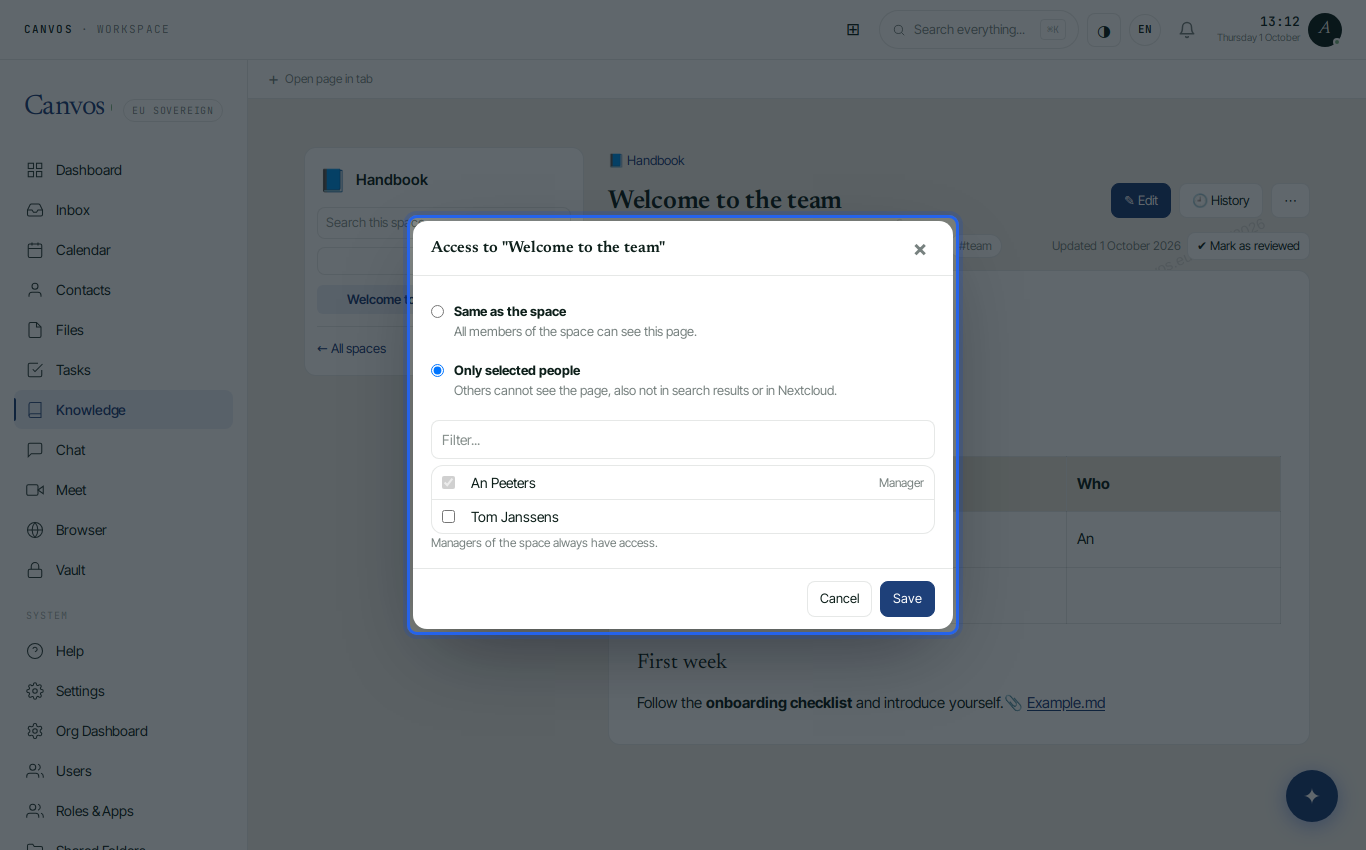
Open the ⋯ menu and choose Restrict access. Choose Only selected people and mark who may see the page. For everybody else the page does not exist: it is not in the tree, not in search results and not in Nextcloud. Space managers always have access. A padlock in the tree shows what is restricted.
DLP and legal hold
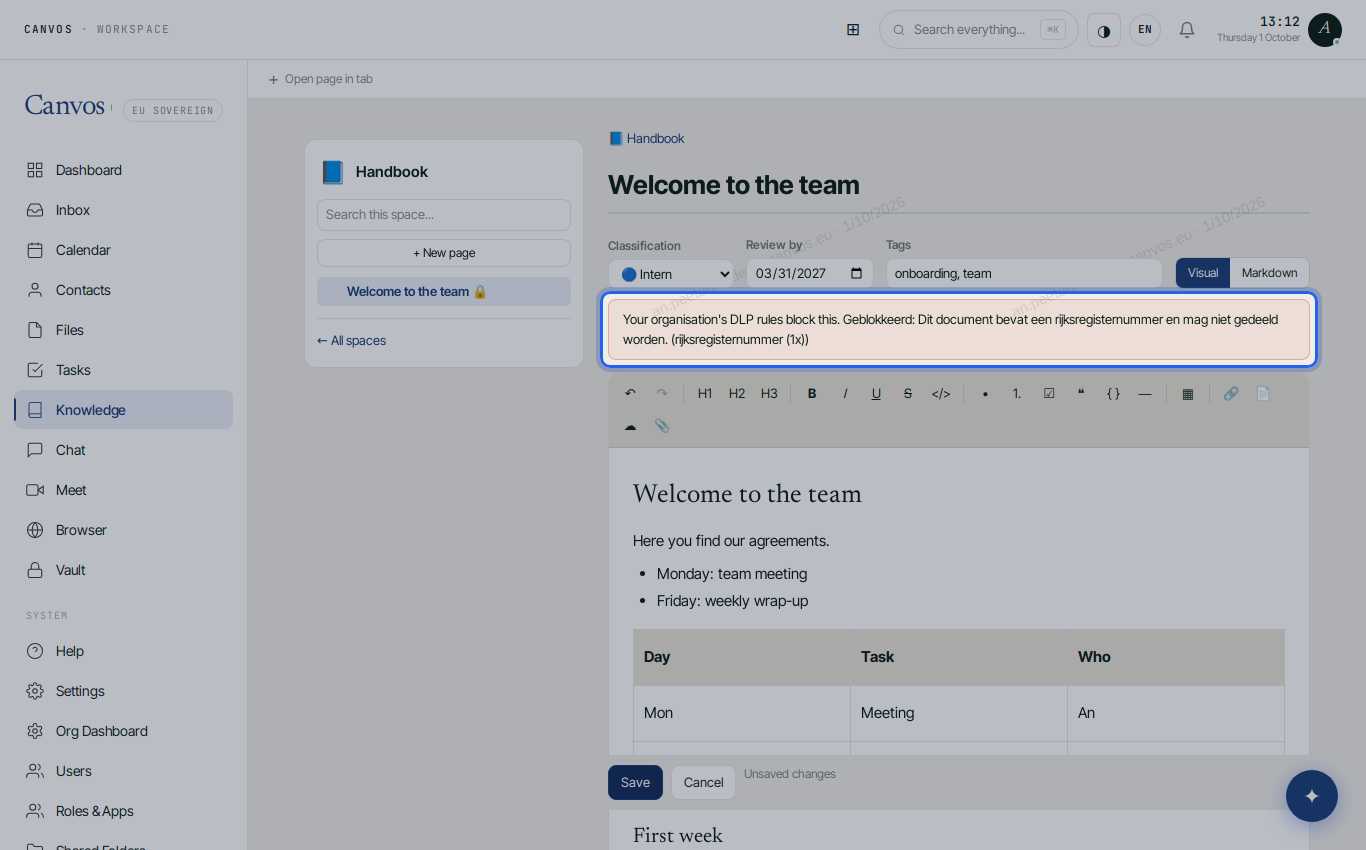
Your organisation's DLP rules also apply to the knowledge base. If the text contains a national registry number, for example, Canvos refuses to save and says why. That way sensitive personal data does not end up in a manual by accident. If a legal hold is placed on a page, it cannot be changed or deleted.
History and restore
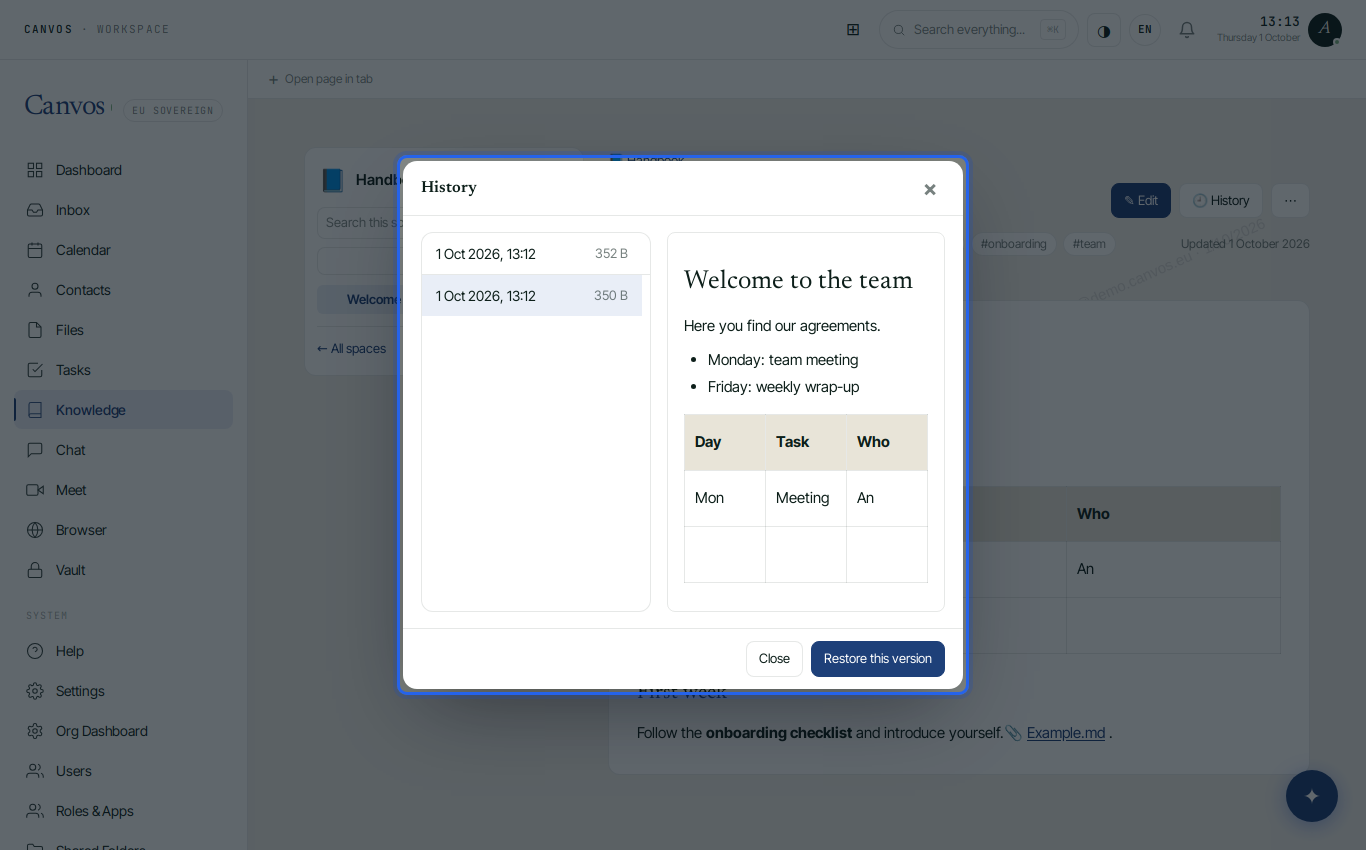
Click History. Every saved change is a version with date and author. Pick a version on the left to view the content and restore it in one click. If two colleagues work on the same page at once, Canvos warns on save: you can copy your text, load their version or overwrite deliberately.
Search
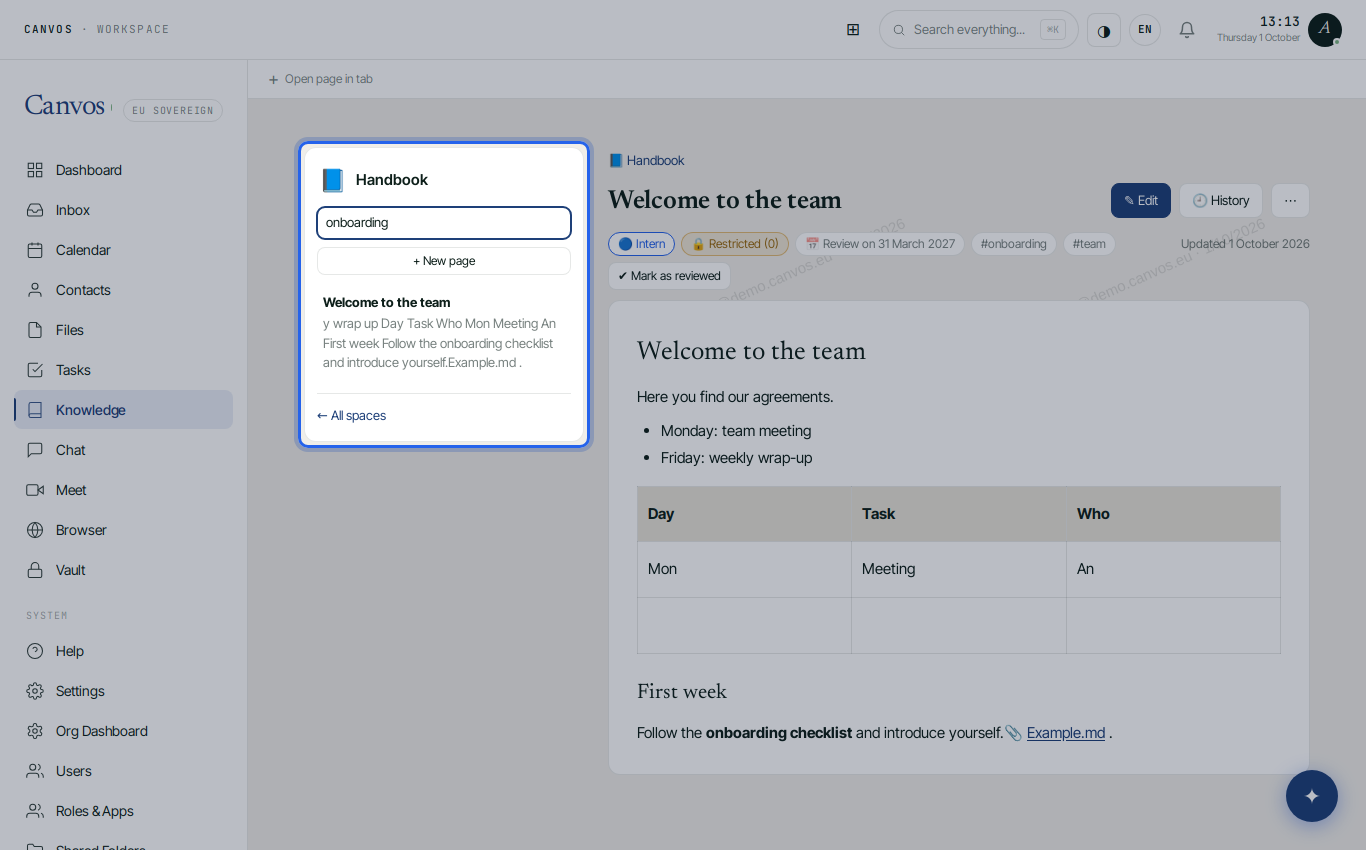
Search in the sidebar within the space, or at the top of the overview across all spaces at once. Search covers titles and content and only shows what you may see yourself: other people's restricted pages do not appear, not even as a snippet. On the space page you also see the recently changed pages.
Administration in the Governance Center
Administrators find the settings under Governance Center → Knowledge base: the knowledge base on or off, who may create spaces, whether a classification is mandatory, a default review period, whether page restrictions are allowed, DLP scanning on save, read logging, the maximum attachment size and who may delete a space. Every change goes into the audit log.
FAQFrequently asked questions
What is the difference between a space and a page?
A space is a knowledge base for a team or topic, with its own members and roles. A page is a document in that space. Pages can have subpages and inherit the rights of the space unless you restrict them.
Can I use existing documents from Nextcloud?
Yes. You link them with the Nextcloud document button. The link points to the file itself, not to a copy, so when the document changes readers see the latest version. Anyone without access to the file cannot open it through the page either.
Do I need to know Markdown?
No. The visual editor works like a word processor. Markdown is there for those who know it or want to paste existing documentation; you can switch at any moment without loss.
Who can see what when I restrict a page?
Only the people you choose and the managers of the space. For others the page does not exist: it does not show up in the tree, search results or Nextcloud, and a direct link gives the same result as a page that does not exist.
Can an earlier version of a page be restored?
Yes. History shows every saved version with date and author, and you restore one in a click. Deleted pages and old versions are kept according to your organisation's retention policy.
What happens when two people edit at the same time?
The second person to save gets a notice that the page has changed in the meantime. You copy your text, load their version, or overwrite deliberately. That way no work is silently lost.
Can anyone create spaces?
By default only administrators. In the Governance Center under Knowledge base you can open this up to everyone, and decide who may delete a space.
Does it work on my phone?
Yes. The knowledge base adapts to a narrow screen: the tree unfolds with a button, and reading and editing work as on the computer.