Whoever runs an office of five to fifty people has no time for three admin consoles. In Canvos everything an organisation administrator needs daily sits behind one menu: users, roles and apps, company folders and mail. In this guide you walk the full onboarding path of a new colleague and see where roles, company folders and the mail settings of your domain live. Note: the administration screens are currently shown in Dutch; the captions translate every step.
Step by stepSix steps
1. Open Users 2. New user 3. Create: everything at once 4. Roles and apps 5. Company folders 6. Mail and DNS check
Open Users
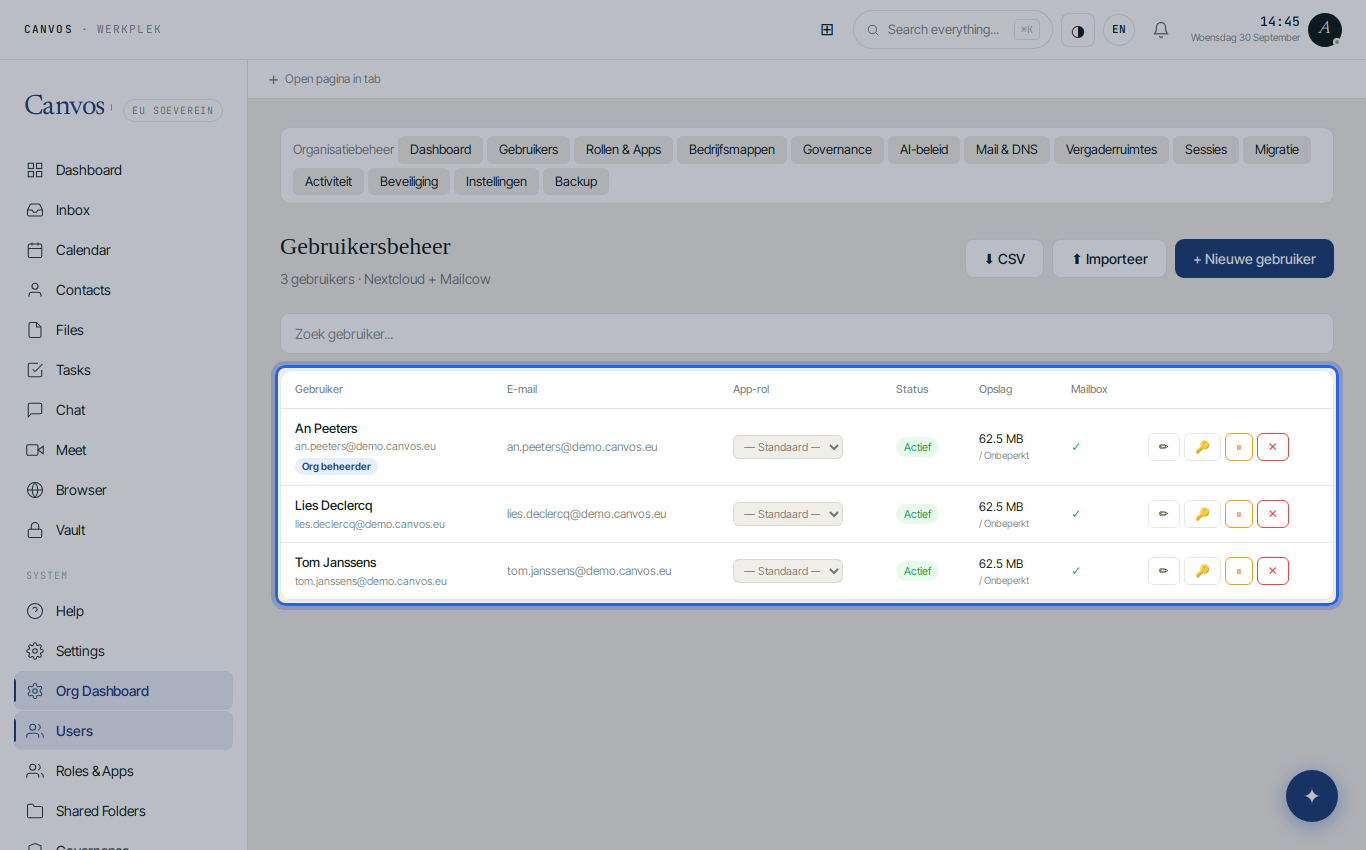
In the left menu under System go to Gebruikers (users). You see everyone in your organisation with email address, app role, status, storage use and whether a mailbox exists. Organisation administrators carry a badge. Search works on name and email.
New user
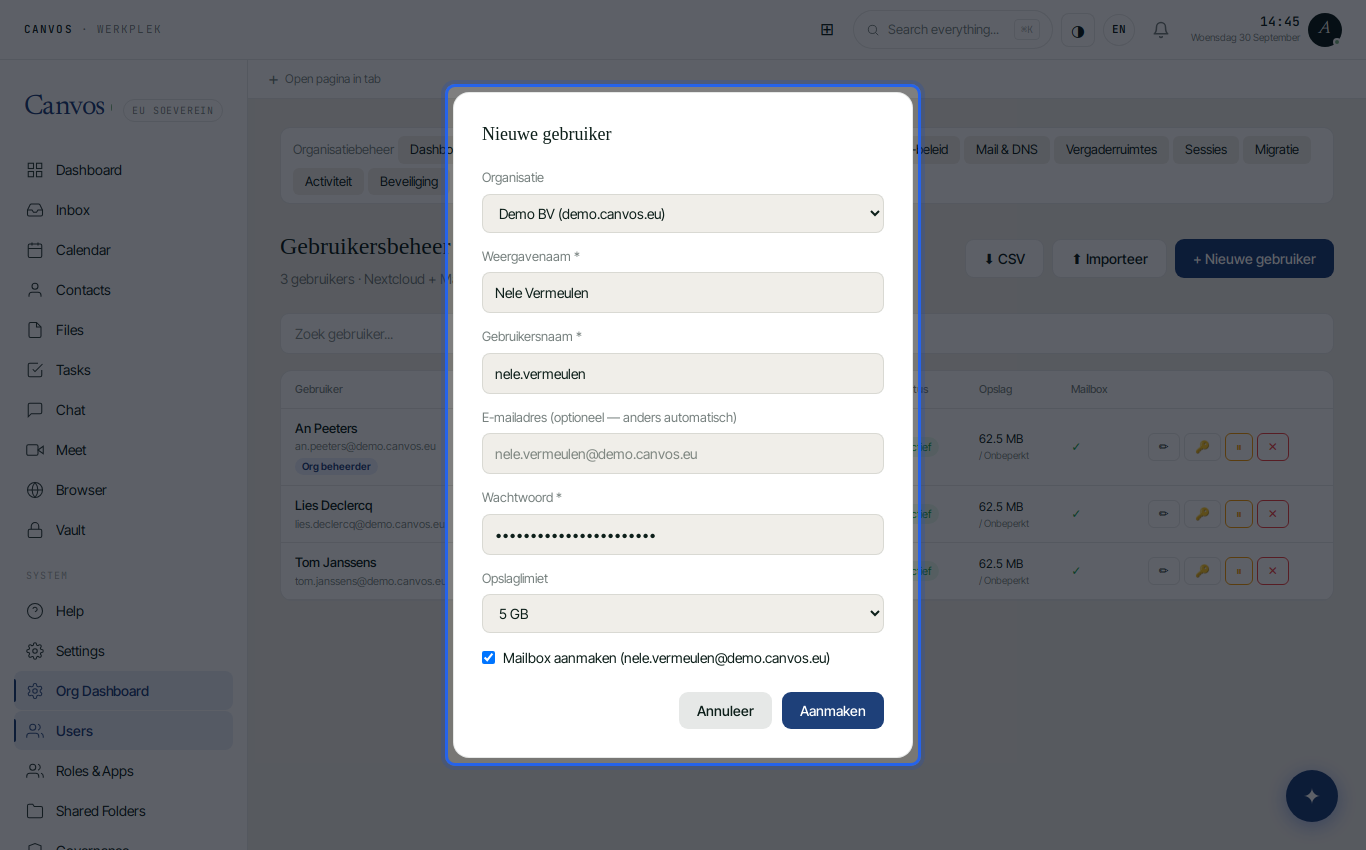
Click Nieuwe gebruiker (new user). Enter the full name; the username is proposed as firstname.lastname and the email address automatically gets your domain. Choose a strong password and a storage quota. Leave create mailbox on: the colleague immediately gets a mailbox on your domain, with calendar and contacts.
Create: everything at once
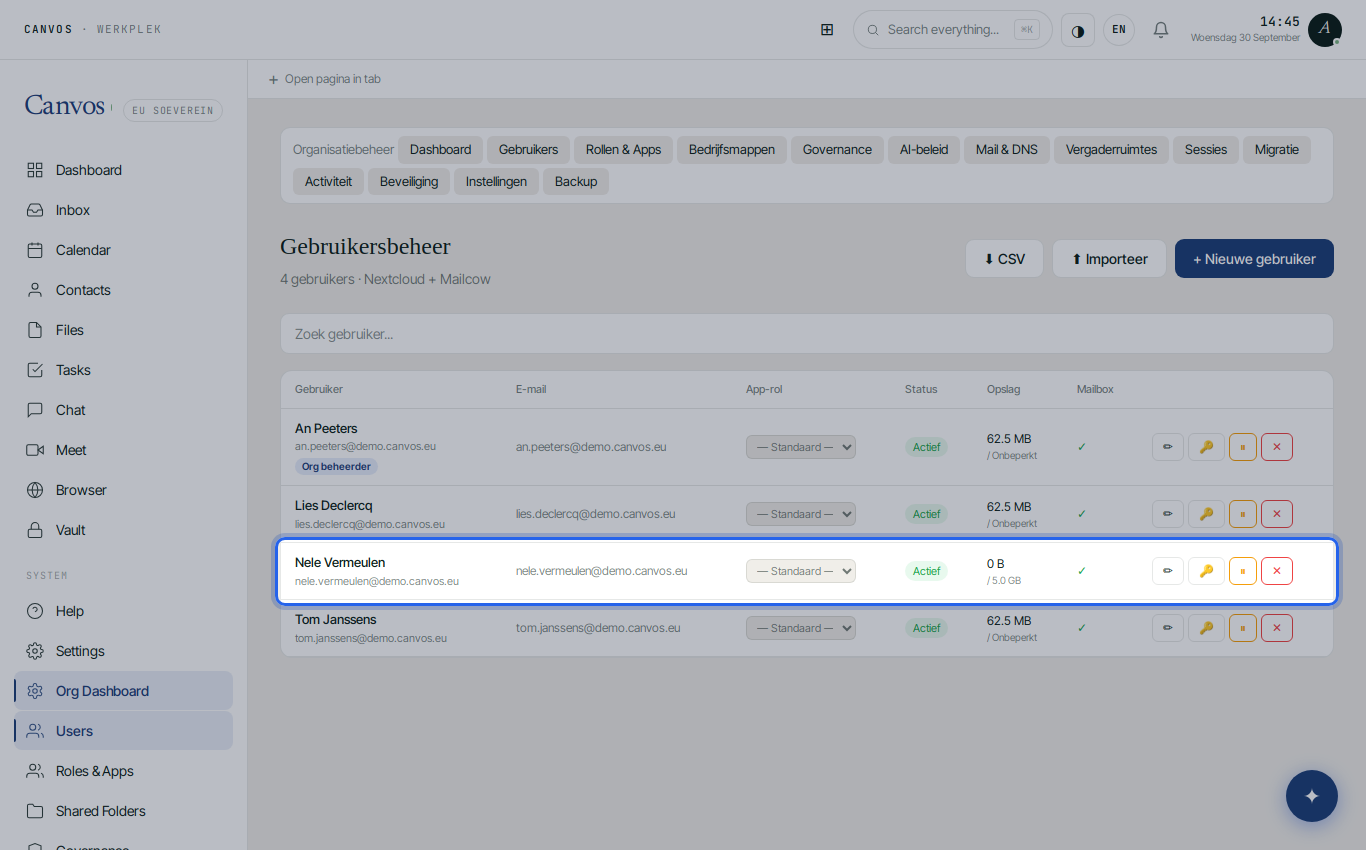
Click Aanmaken (create). Canvos creates the account, the mailbox, the calendar and the address book and links them to your organisation. The new colleague appears in the list and can log in right away with one login for files, mail, calendar, chat and video meetings. No separate licences, no second console.
Roles and apps
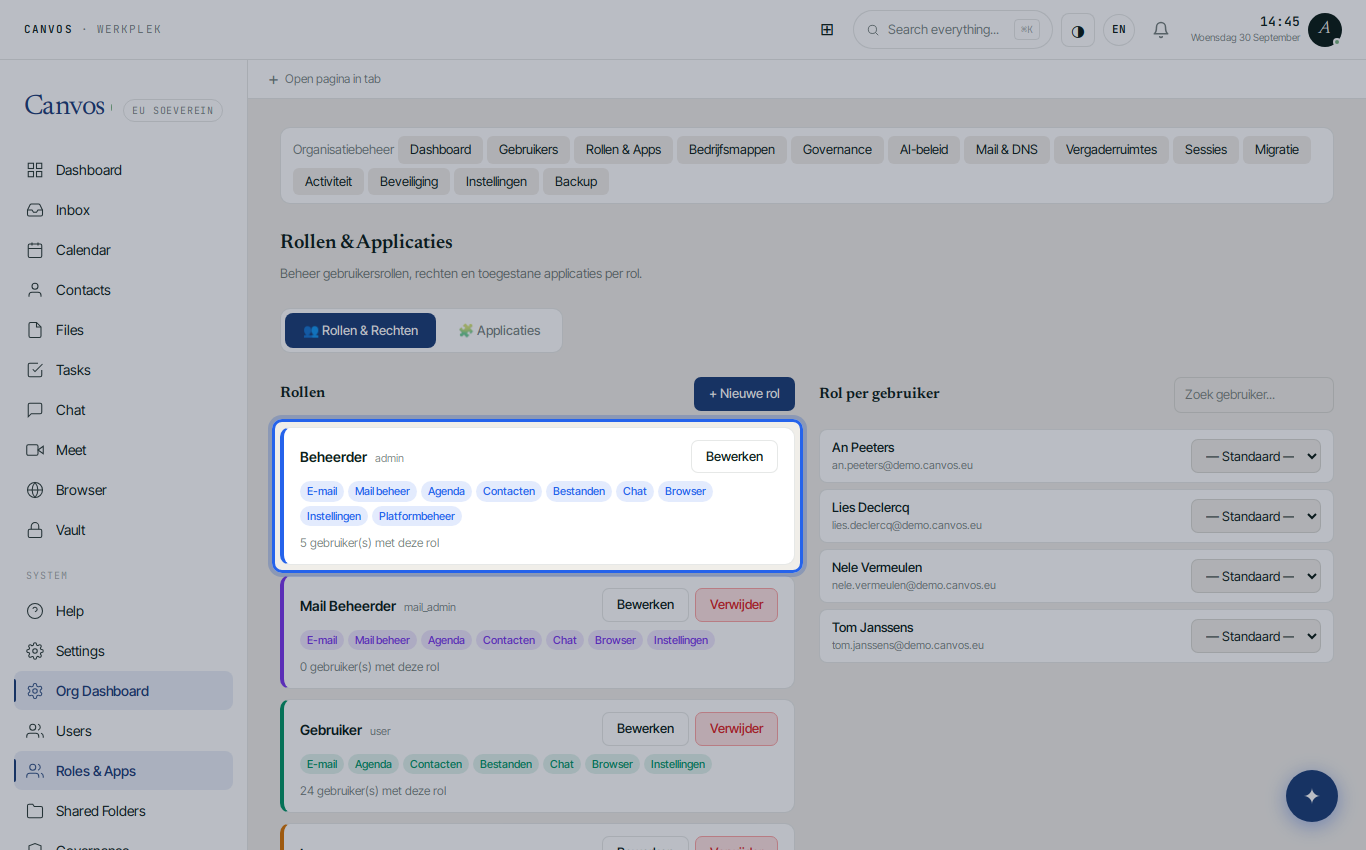
Under Rollen & Apps you decide what a role may see: files, mail, mail administration, calendar, contacts, chat, meet, browser, vault. By default there are roles for administrator and user; you add your own, for example a read-only role for an external accountant. On the right you assign users to a role.
Company folders
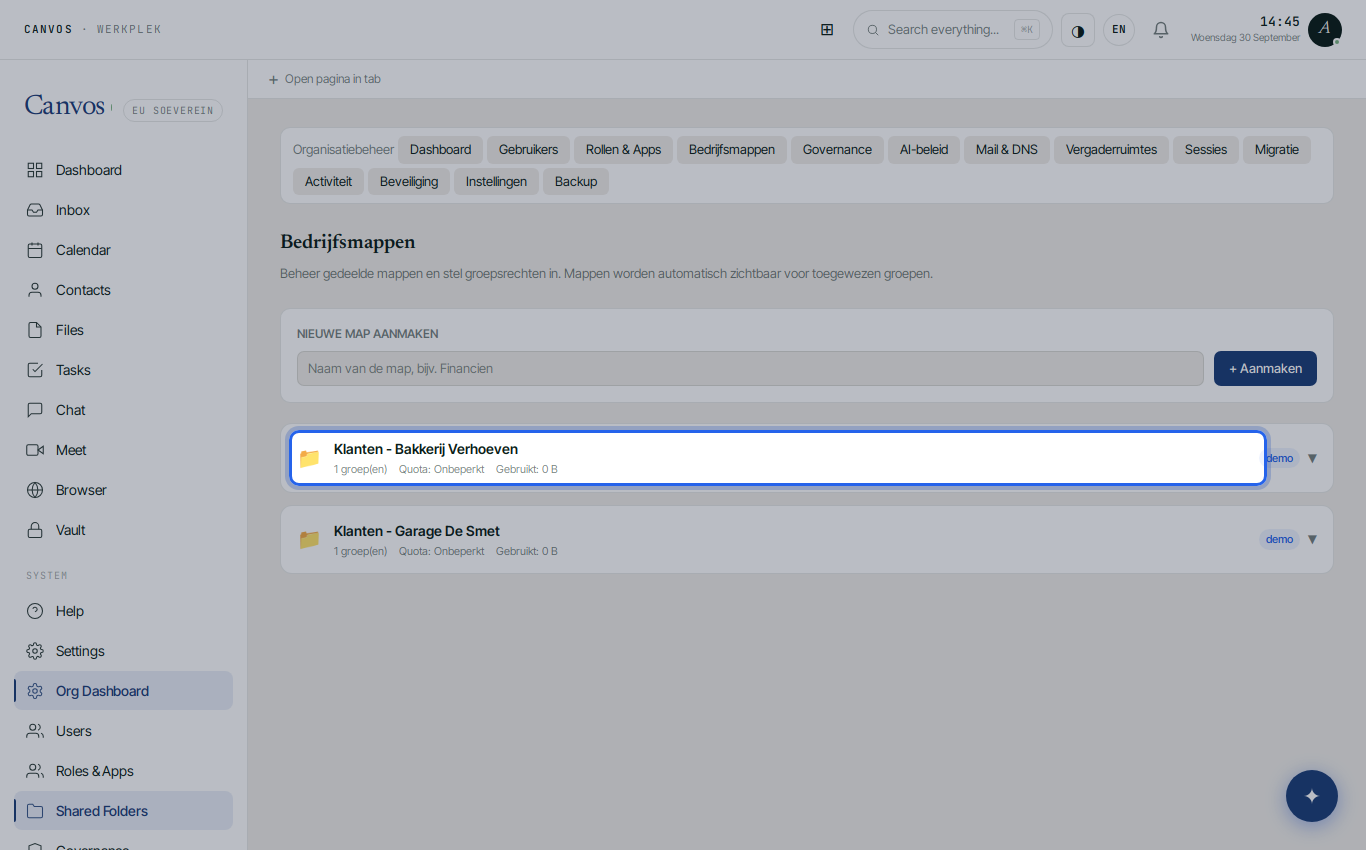
Under Bedrijfsmappen (company folders) you manage the shared folders of the organisation: per team, per client or per project, with rights per group and a quota. Governance policy, such as labels, sharing rules and retention, applies here too. A new colleague immediately sees the folders of their group.
Mail and DNS check
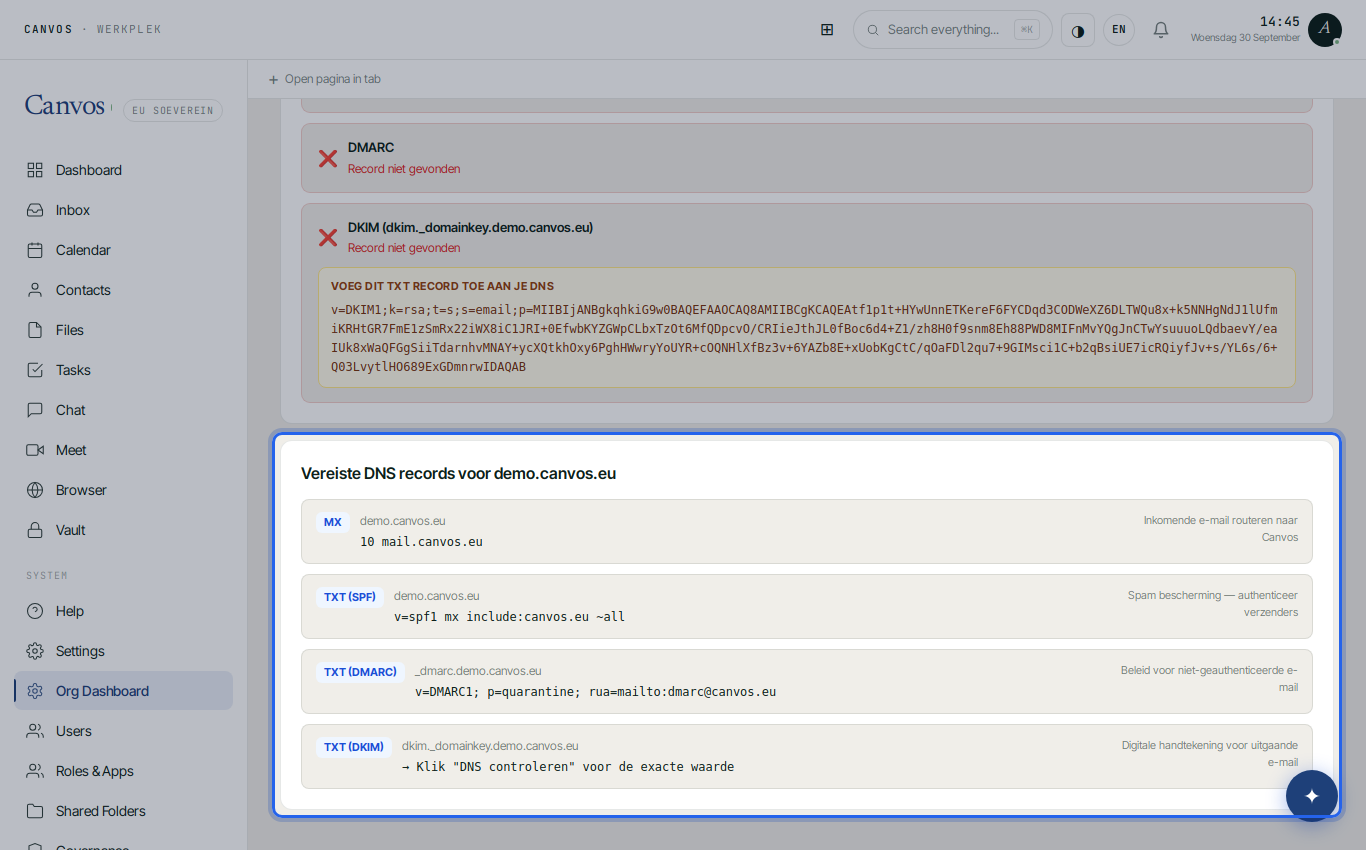
Under Mail you see the mailboxes and domains of your organisation. Click DNS controleren (check DNS): Canvos tests SPF, DKIM, DMARC and MX for your domain and shows exactly which records are still missing, with the value to enter at your registrar. That way your mail arrives and your domain is not abused.
FAQFrequently asked questions
Can I import users in bulk?
Yes. The users page offers a CSV import and an export of the current list. Useful when moving from Microsoft 365 or Google Workspace; see also the migration guides.
What happens to the data of a departing colleague?
On deletion, files in company folders are kept; personal files and the mailbox can be transferred or exported beforehand. Retention policy and backup continue to apply.
Can a user have several roles?
Each user has one app role that decides which modules are visible. Rights on folders are managed separately through groups in Company folders and Nextcloud groups.
Do I have to do anything with the DNS records myself?
Only enter at your registrar what the check marks as missing. The values are shown literally on screen. After changing them, click check DNS again to confirm.