A video meeting should not be a hurdle. Yet most tools ask your counterpart for an account, an app or an update, while the conversation runs on a server you know nothing about. Canvos Meet is built on Jitsi and runs on meet.canvos.eu, your own infrastructure in Europe. You start with one click, your guest joins through a link, and for a planned meeting you let the calendar create the link and password.
Step by stepFive steps
1. Open Meet 2. Start the meeting 3. Your guest joins through the link 4. Plan it ahead in the calendar 5. Or start it from a chat conversation
Open Meet
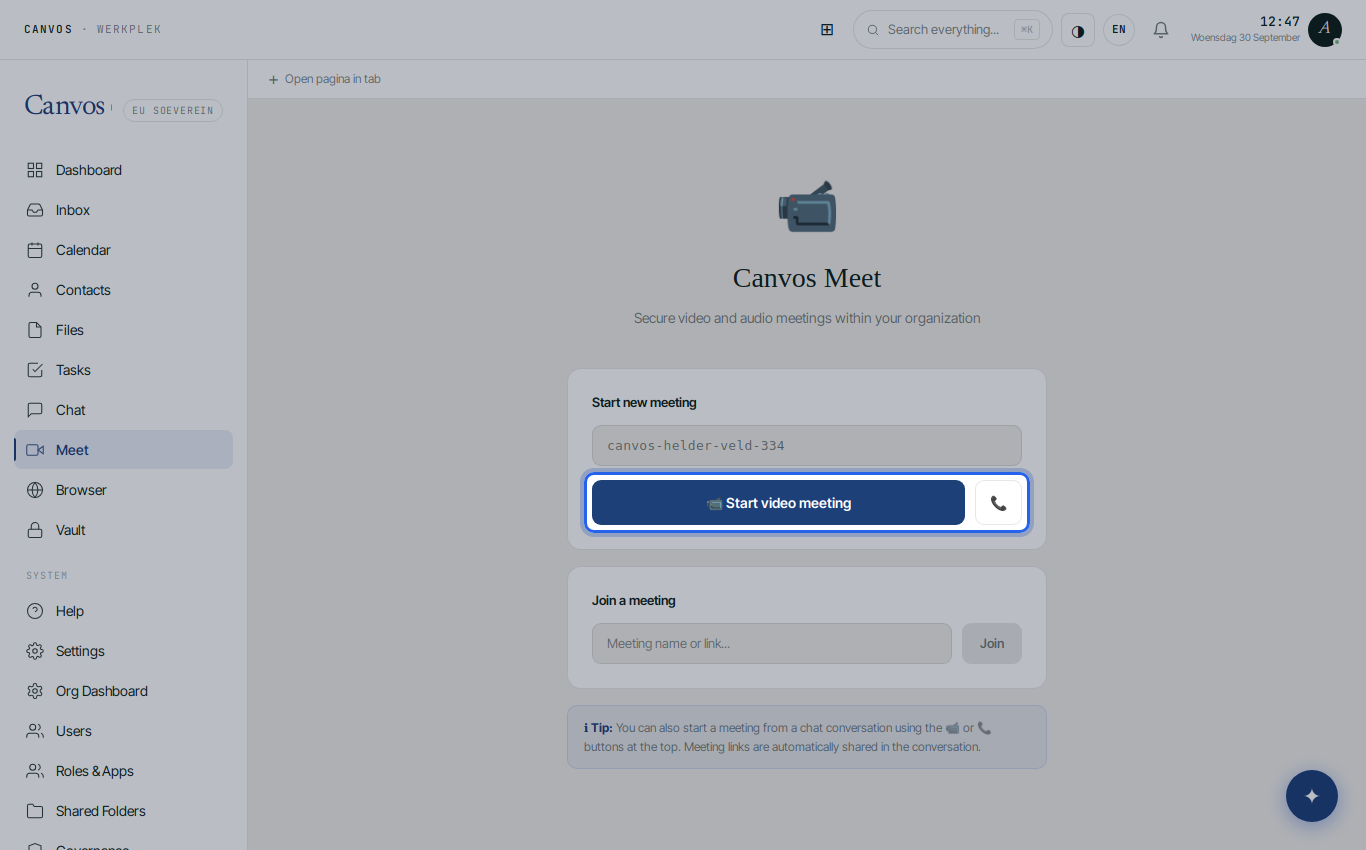
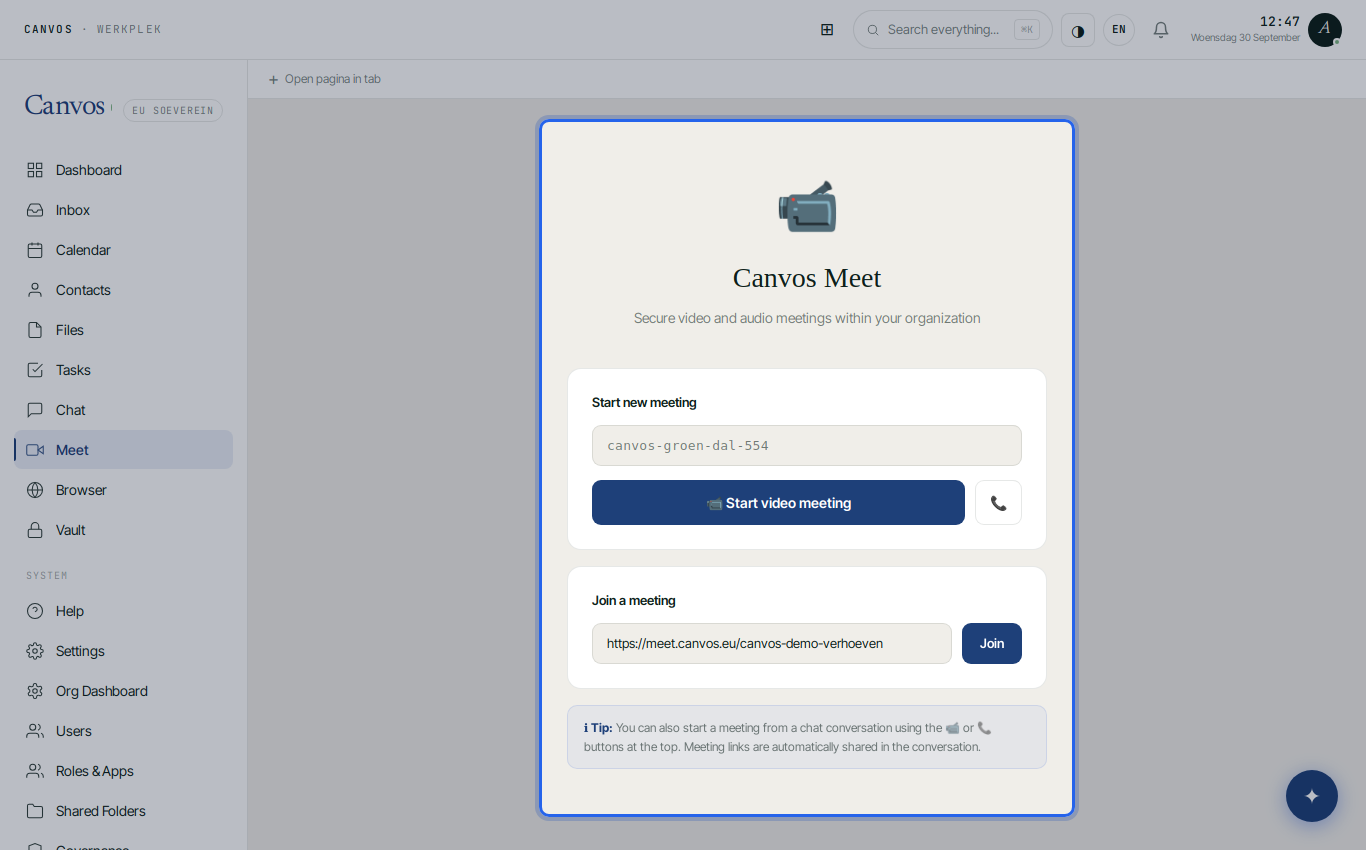
Click Meet in the sidebar. Canvos has already prepared a meeting room with a random name for you. Under Deelnemen aan vergadering (join meeting) you paste a link someone else sent you.
Start the meeting
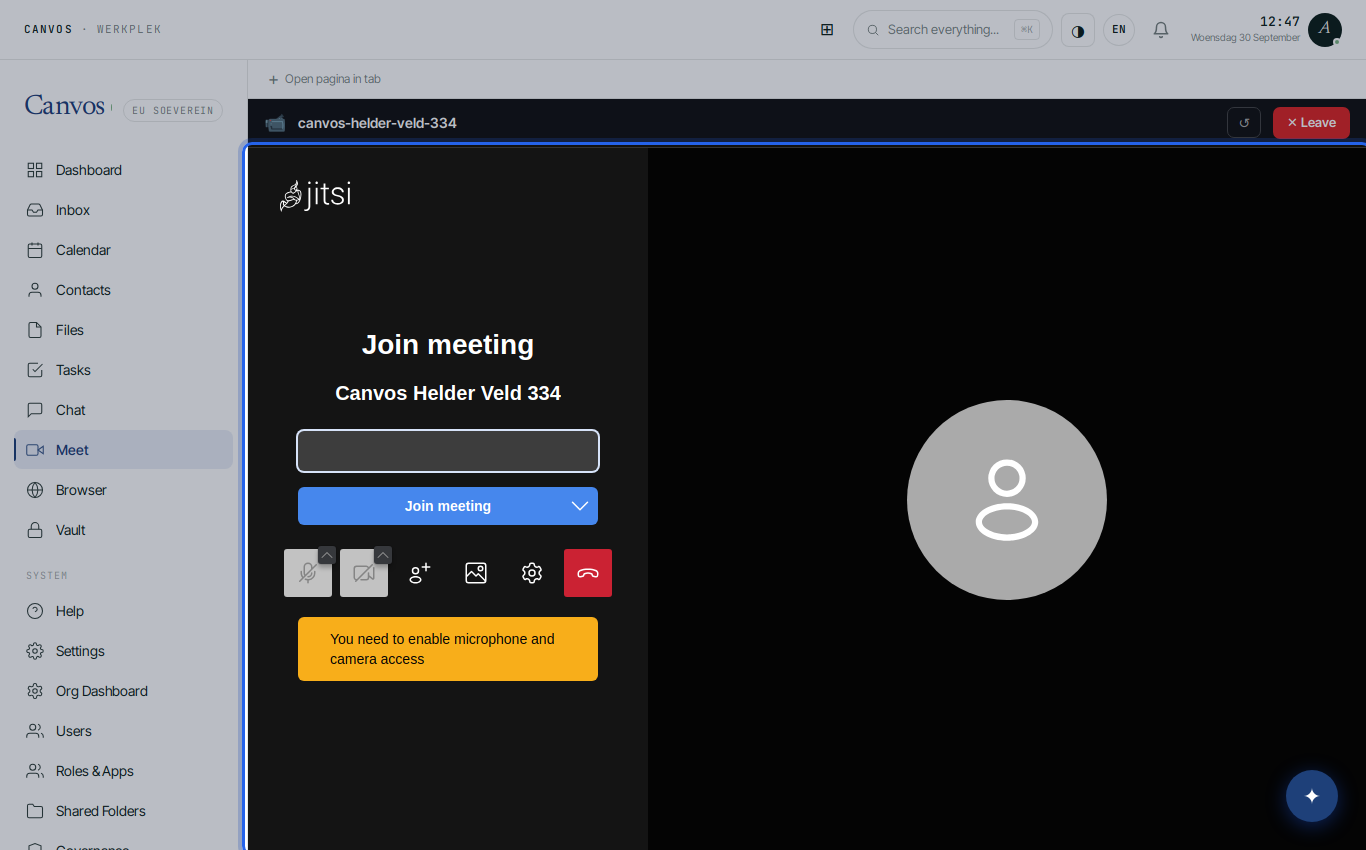
Click Start video-vergadering (start video meeting). The meeting opens inside Canvos and runs on meet.canvos.eu. You choose camera and microphone and share the link with whoever you like: it is in the address bar and in the meeting room.
Your guest joins through the link
A client or supplier clicks the link, types a name and is in the conversation, in the browser, without account or installation. On a phone it works the same. To join someone else's meeting yourself, paste the link into the field on the Meet page.
Plan it ahead in the calendar
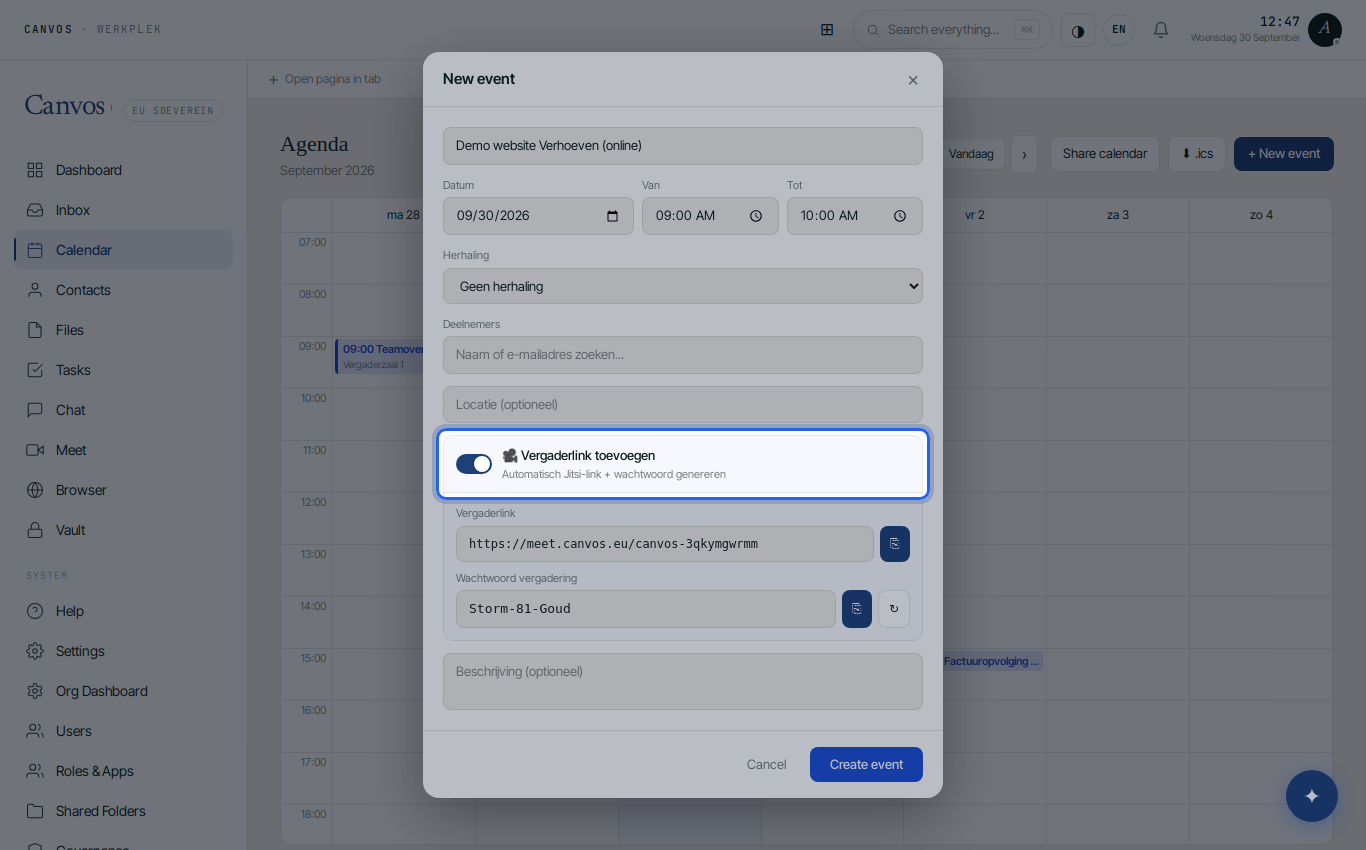
When you create an appointment in the Calendar, switch on Vergaderlink toevoegen (add meeting link). Canvos automatically generates a link and a password and puts them in the invitation. Your invitees have everything they need, including those who do not use Canvos.
Or start it from a chat conversation
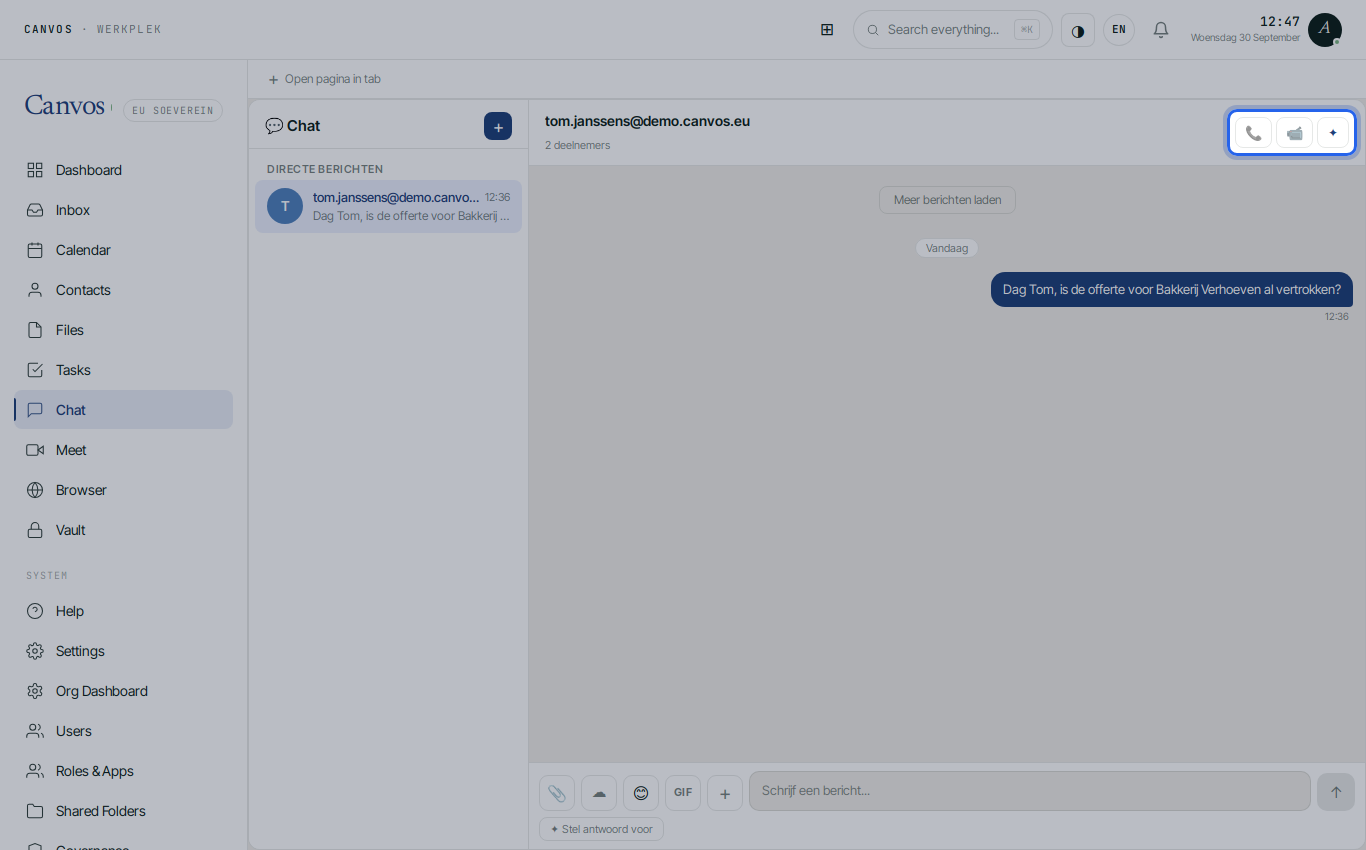
Every conversation in Chat has 📹 and 📞 at the top. One click starts a video or audio meeting with the people in that conversation, and the link is shared automatically. Handy when a chat had better become a call.
FAQFrequently asked questions
How many people can join?
Meet is meant for meetings with a small to medium number of participants; for large webinars there are better tools. Ask your administrator about the limits of your package.
Can I share my screen and record?
Screen sharing works with the button in the meeting bar. Recording is not enabled by default; discuss it with your administrator, also because recordings fall under the GDPR.
Does it work on the phone?
Yes, in your phone's browser or with the Jitsi Meet app, in which you set meet.canvos.eu as the server.
Is a meeting secure?
Connections are encrypted and the room runs on your infrastructure. For planned meetings the calendar also generates a password, so only invitees can enter.