The calendar is the part everyone opens every day, and the part most people worry about in a migration: is it on my phone too? Yes. The Canvos calendar speaks CalDAV, the open standard iOS supports natively and Android through a small app. In this guide you plan an appointment with a colleague, share your calendar, and connect it to your phone, so an appointment you add on the road is visible at the office right away.
Step by stepFive steps
1. Your week view 2. A new appointment 3. Create 4. Share your calendar with a colleague 5. The same calendar on your phone
Your week view
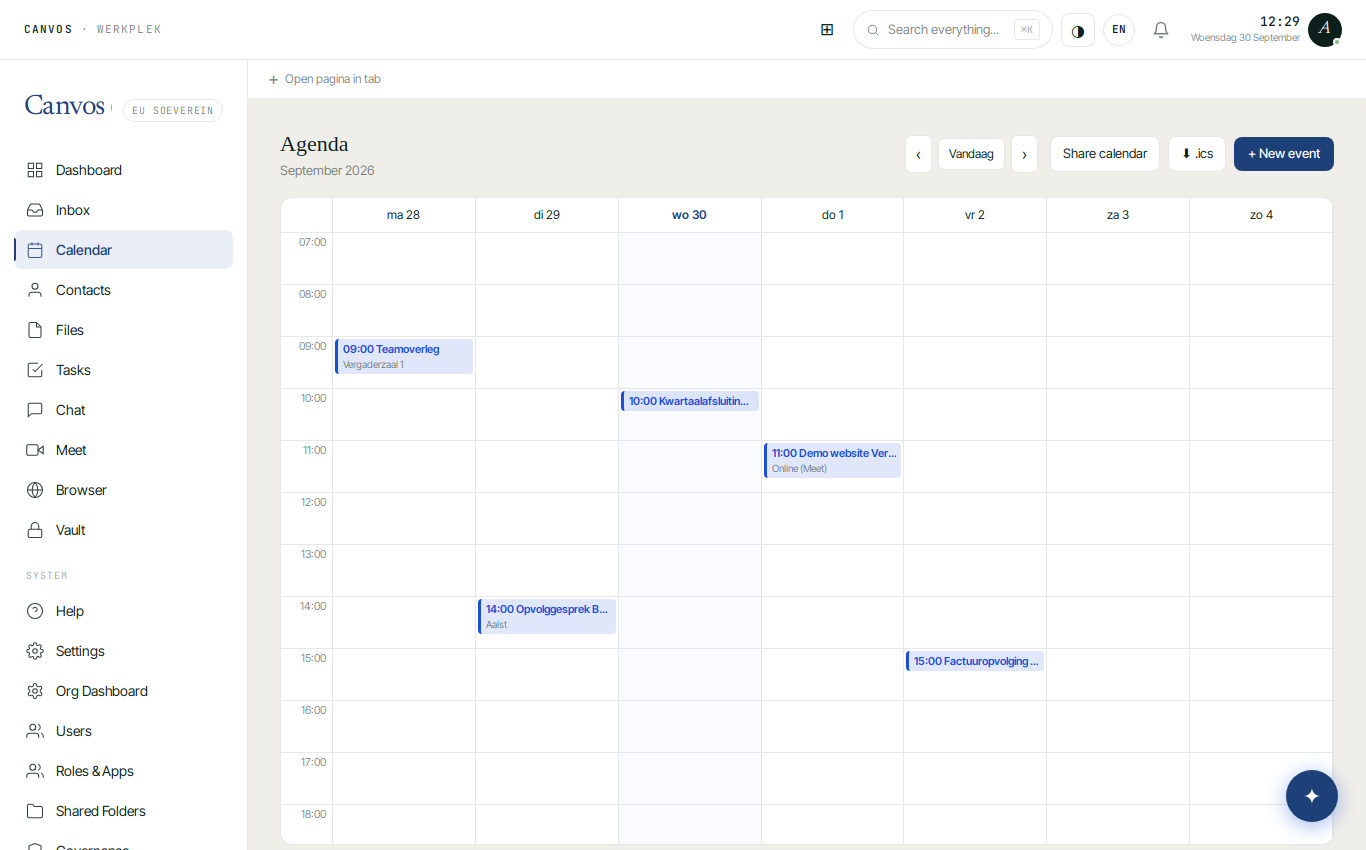
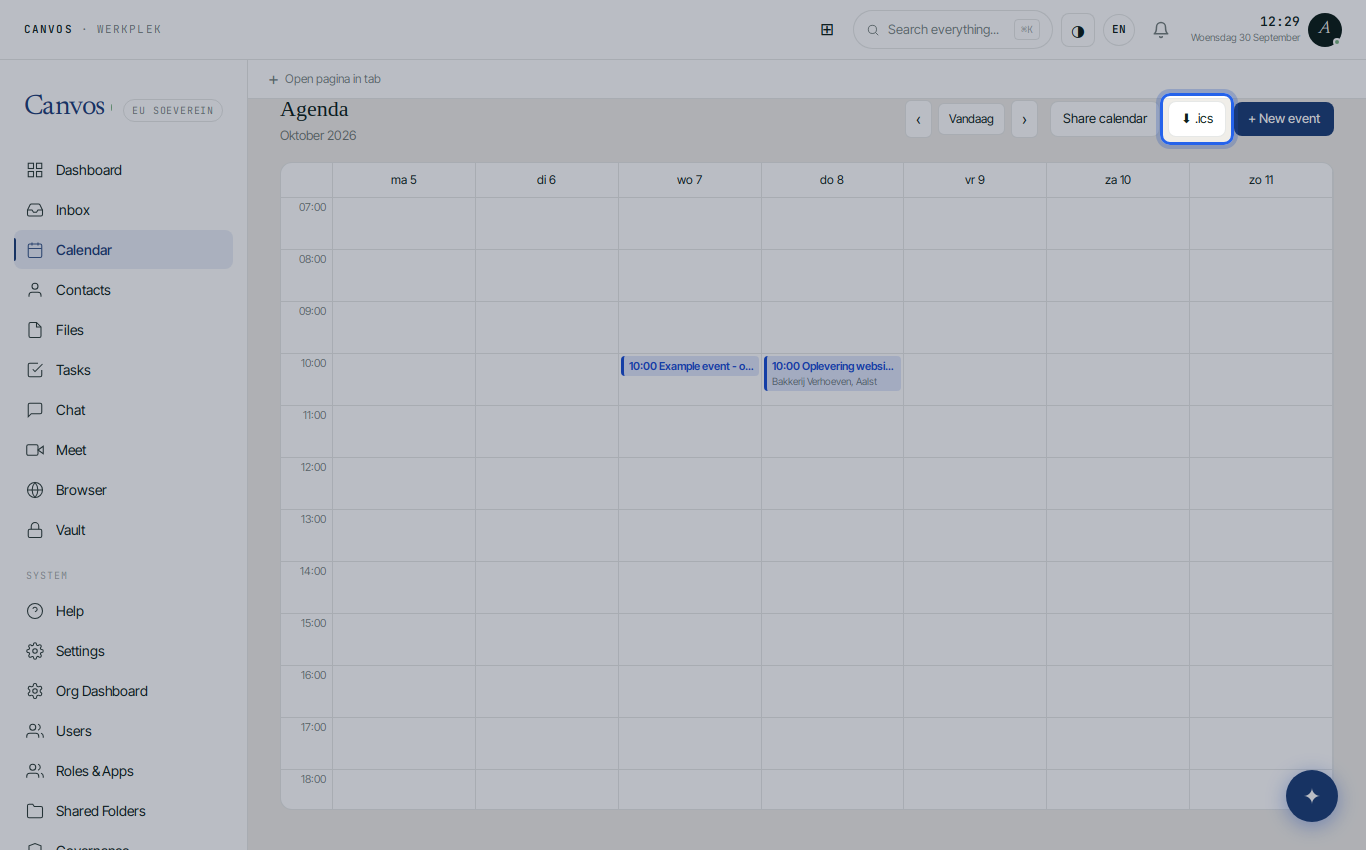
Click Calendar in the sidebar. You see the week with all appointments; ‹ and › browse, Today jumps back. Appointments of colleagues who share their calendar with you appear in their own colour.
A new appointment
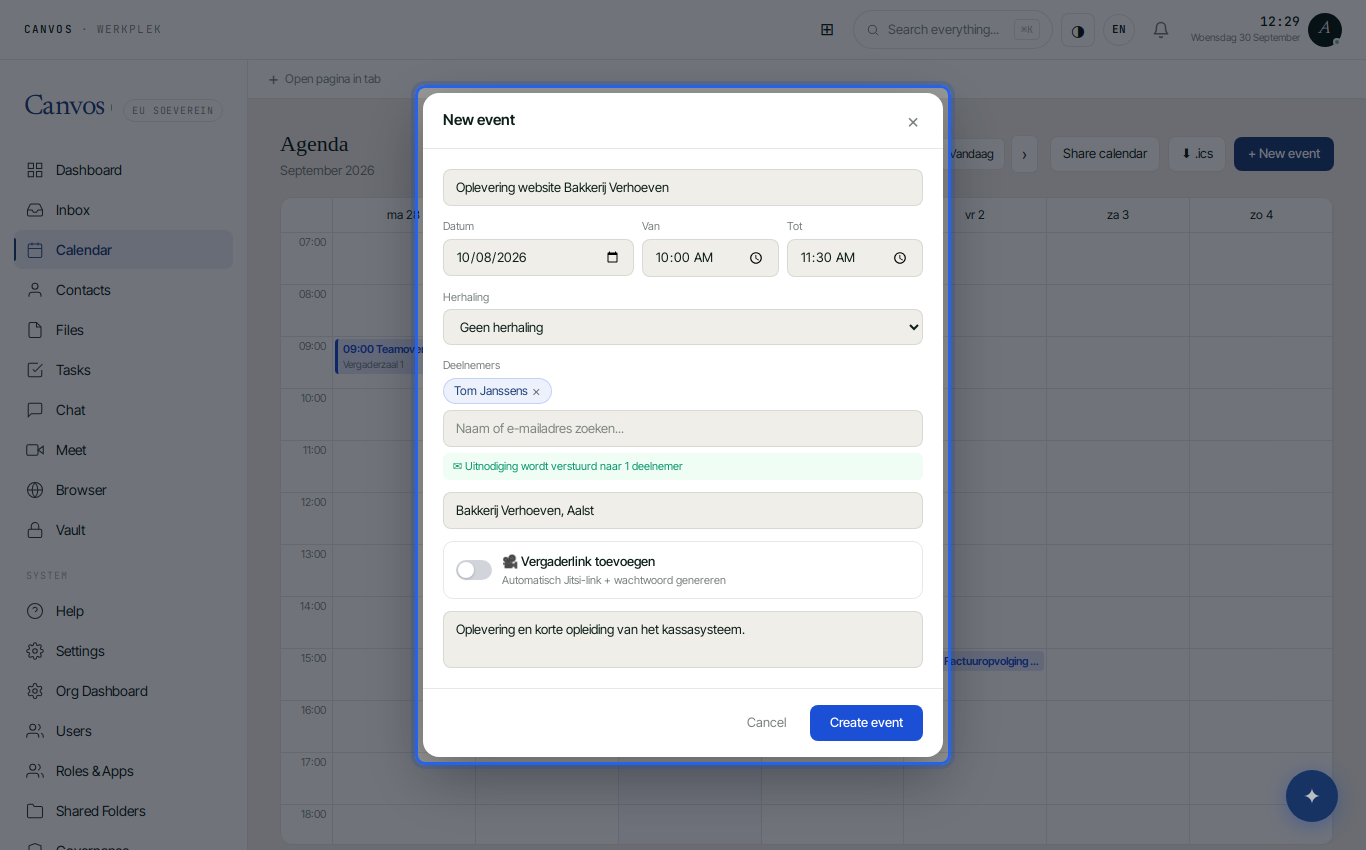
Click + New event. Give a title, choose the day and the start and end time, optionally a repeat (daily, weekly, monthly, yearly). Under Attendees type a colleague's name; Canvos autocompletes. Add a location and a description.
Create
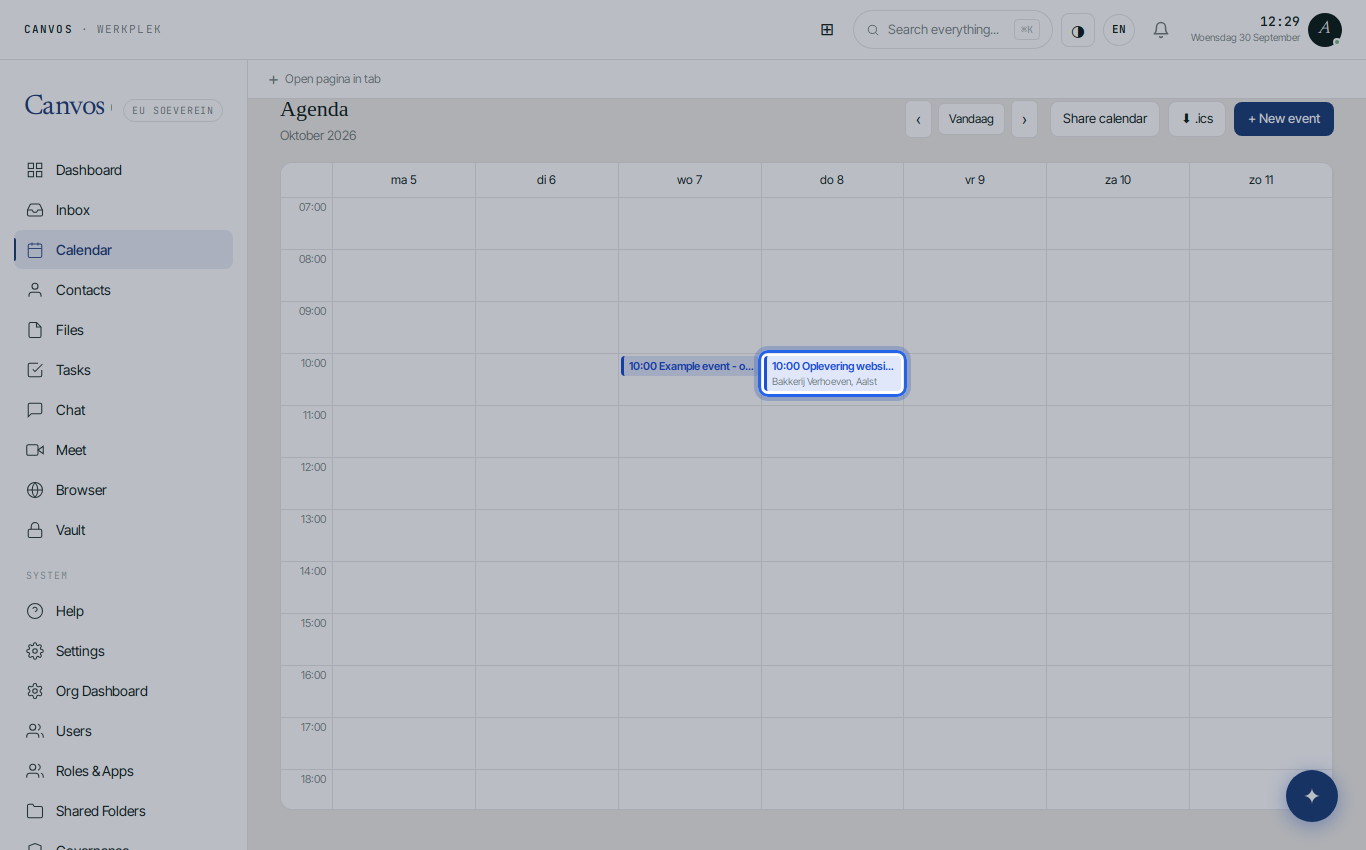
Click Create event. The appointment is in your calendar and in the invited colleague's, and therefore on their phone as well. Click an appointment to edit or delete it.
Share your calendar with a colleague
Click Share calendar. Choose which calendar, with whom, and the access level: Read only (the colleague sees your appointments) or Read + write (the colleague can plan in it too, handy for an assistant or a team calendar). Click Share.
The same calendar on your phone
⬇ .ics exports a calendar as a file, but a real connection through CalDAV is better. iPhone/iPad: Settings, Calendar, Accounts, Add Account, Other, Add CalDAV Account; server cloud.canvos.eu, your Canvos username and password (or an app password if you use 2FA). Android: install DAVx⁵ (free on F-Droid), choose Login with URL and username, URL https://cloud.canvos.eu/remote.php/dav/, and tick your calendars. From then on your usual calendar app works with your Canvos calendar.
FAQFrequently asked questions
Do invitations also work for people outside Canvos?
Yes. Add an external email address under Attendees; the invitee receives an email invitation that opens in any calendar app.
I use 2FA. Which password do I enter on my phone?
An app password, which you create under Settings, Security. That way you never store your real password on a device and you can revoke it per device.
Can I sync my contacts as well?
Yes, the same way through CardDAV: on iOS with a CardDAV account, on Android with DAVx⁵, which connects calendars and contacts at once.
Does it work with Outlook?
Outlook has no built-in CalDAV. With the free Outlook CalDav Synchronizer plug-in you connect your Canvos calendar and contacts anyway.