The biggest worry in a migration is not the technology but habit. Where is my Inbox, how do I reply, where is my signature? Canvos Mail is built to make those questions unnecessary: the layout is the layout you know. In this guide you go through a first day: you read and answer a mail, send one yourself, create a rule that stars invoices automatically, fill in your signature and set an out-of-office message. Everything stays on your own workplace in Europe.
Step by stepSeven steps to feel at home
1. Your Inbox 2. Reading a message 3. Replying 4. A new message 5. A rule that stars invoices 6. Your signature 7. An out-of-office message
Your Inbox
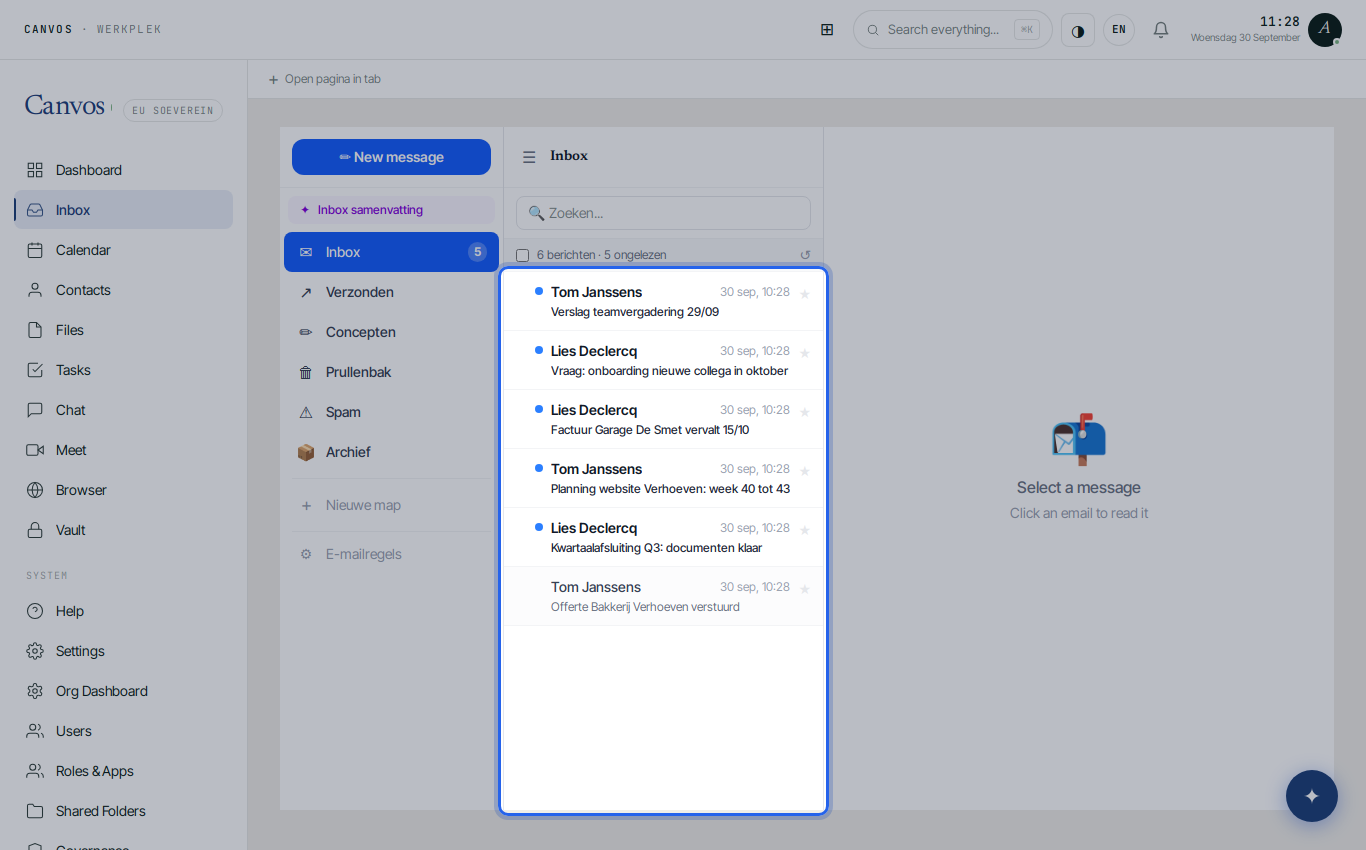
Click Inbox in the sidebar. On the left are the folders as you know them: Inbox, Sent, Drafts, Trash, Spam and Archive. In the middle the message list with sender, subject and time, on the right the opened message. New folders are created with + New folder.
Reading a message
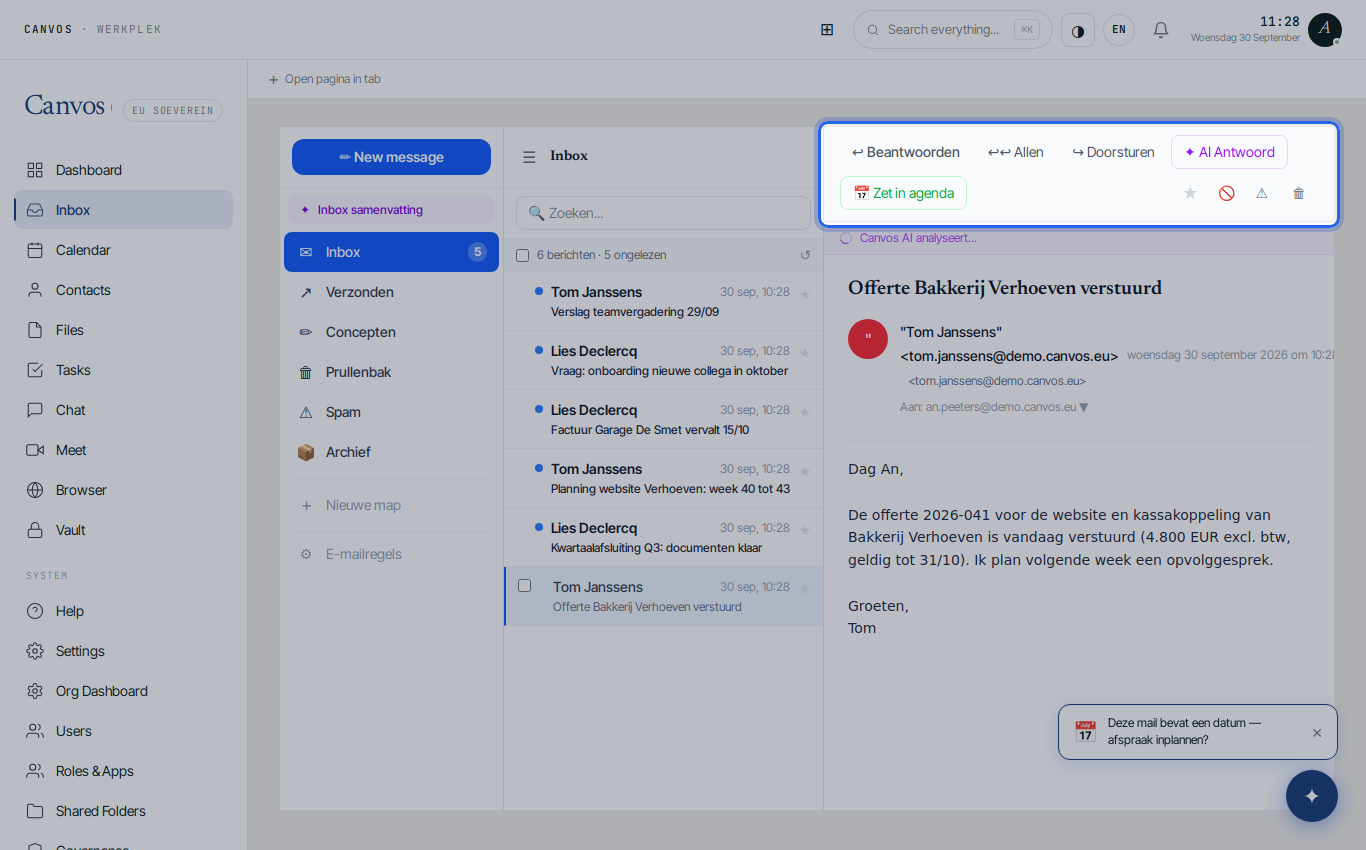
Click a message. At the top are the actions: Reply, Reply all, Forward, and two Outlook does not have: AI Reply proposes an answer, and Add to calendar turns a mail containing a date into an appointment at once. If a mail contains a date, Canvos suggests it by itself.
Replying
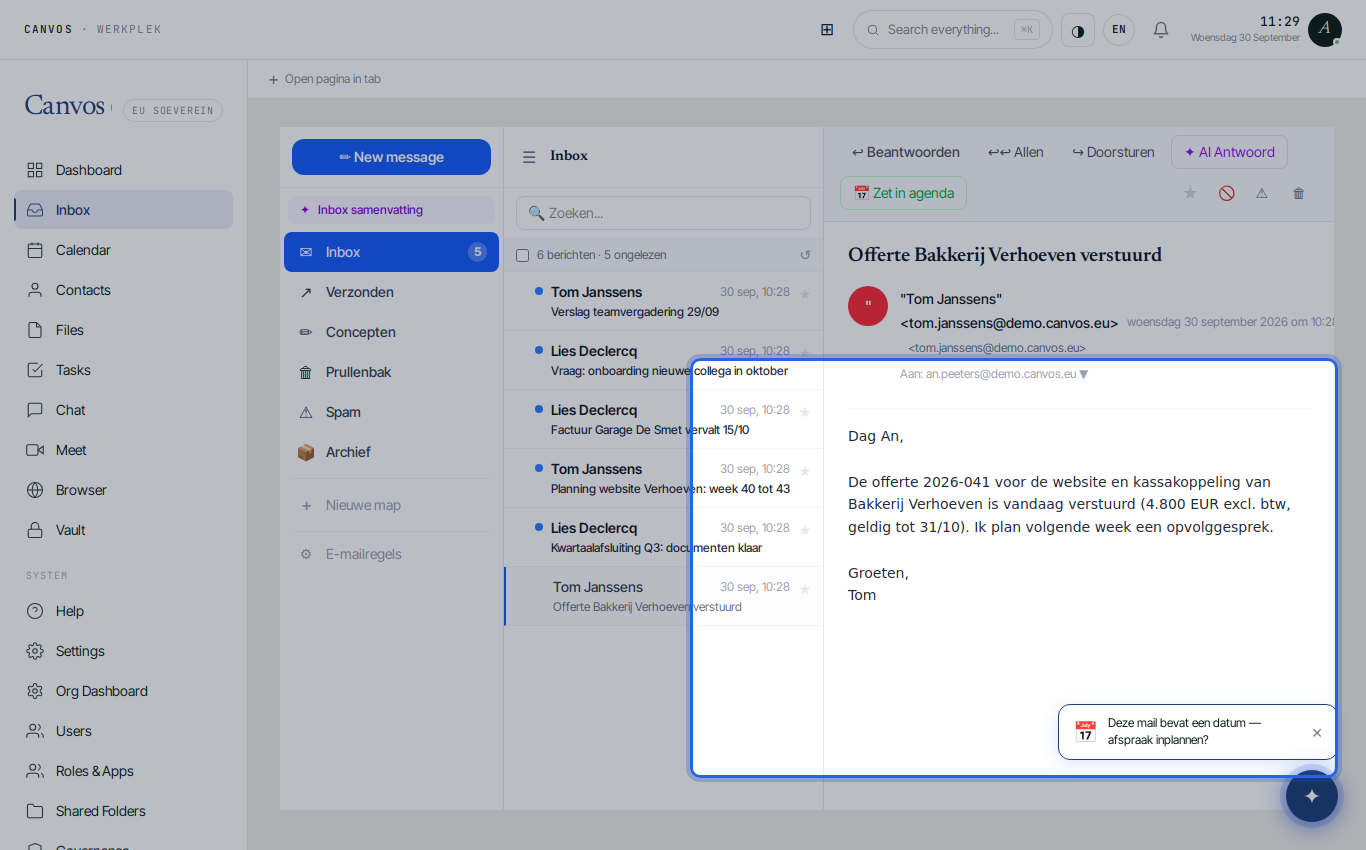
Click Reply. The answer opens with recipient and subject already filled in and a formatting bar for bold, lists, quotes and links. Type your answer and click Send. Your signature is added automatically once you set it up in step 6.
A new message
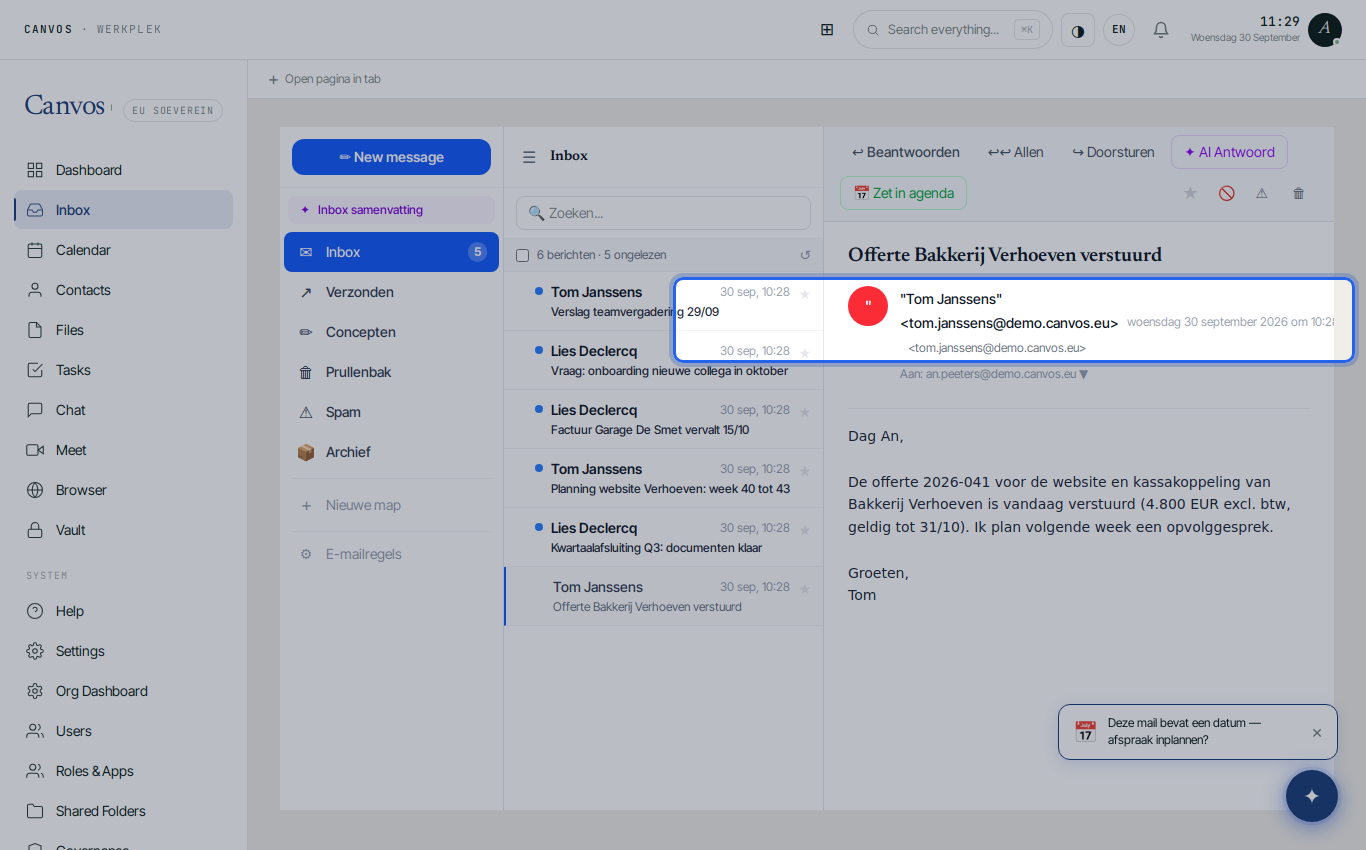
Click New message. Type the recipient (Canvos autocompletes colleagues as you type), the subject and the text. Attachment adds a file from your computer, Canvos a file from your Canvos files, without downloading and re-uploading it. Click Send.
A rule that stars invoices
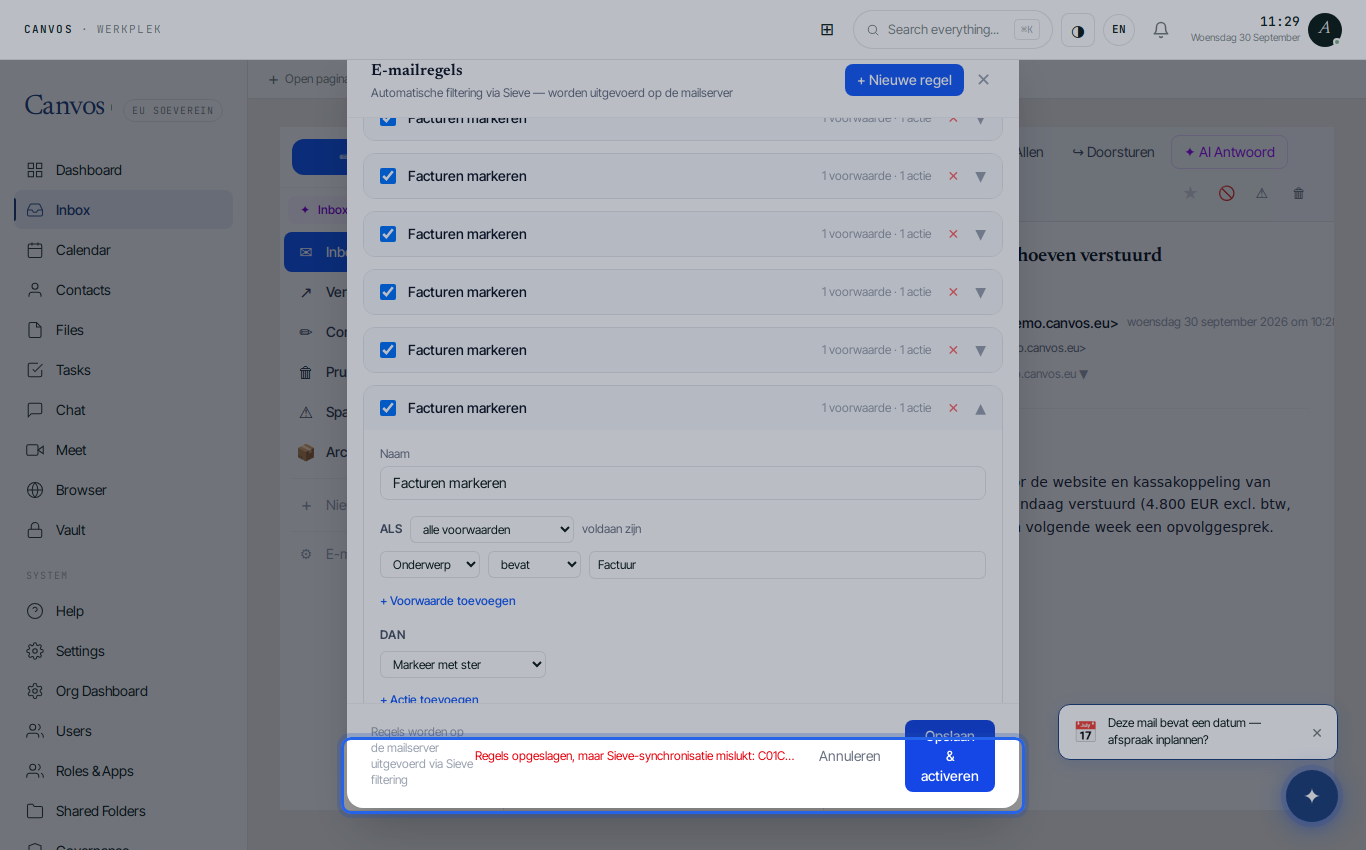
Click Email rules on the left and then + Nieuwe regel (new rule). Name the rule, under IF choose Subject contains Factuur (invoice) and under THEN choose Markeer met ster (star). Click Opslaan & activeren (save and activate). The rule runs on the mail server itself, even when Canvos is not open. You can also move to a folder or mark as read, and combine several conditions.
Your signature
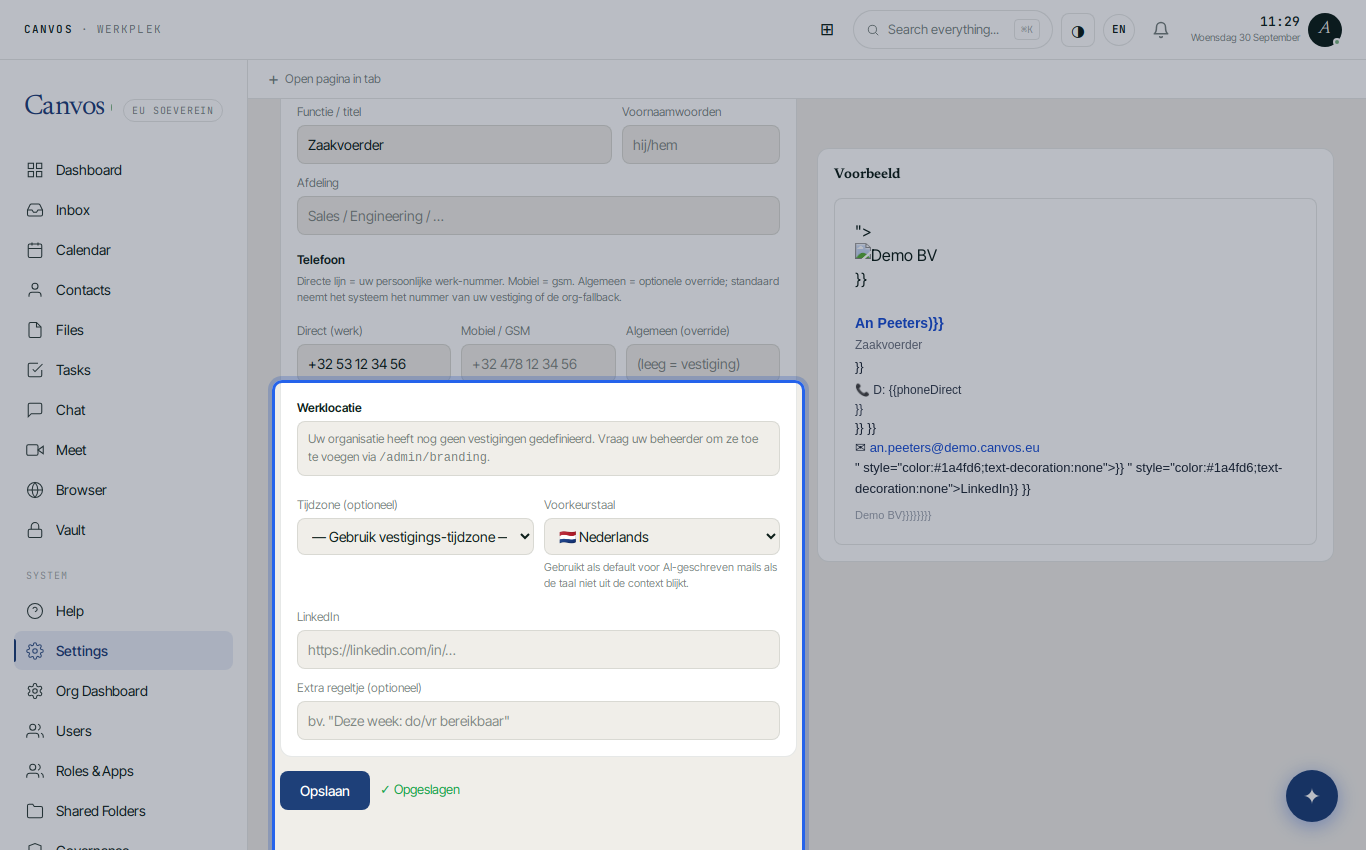
Go to Settings and choose Email signature. Your organisation uses a fixed template with logo and house style; you only fill in your own details: role, phone, optionally LinkedIn. Switch on Handtekening gebruiken (use signature) and click Save. From now on it sits under every outgoing mail, always in the right style.
An out-of-office message
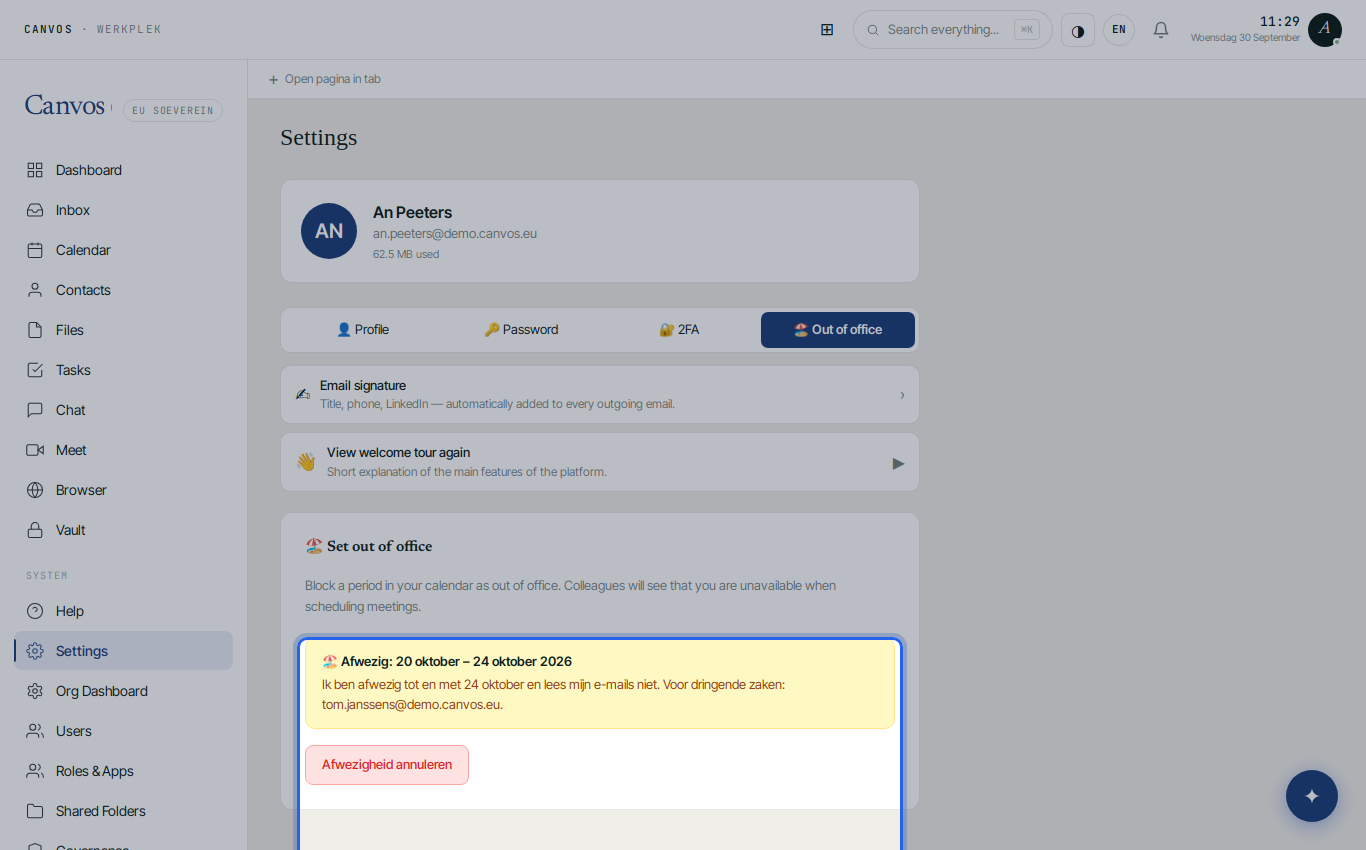
Under Settings choose Out of office. Enter the first and last day and a message for whoever mails you, for example who stands in for you, and click Set out of office. Canvos then shows the period and your message; Cancel switches it off again. Colleagues also see your absence in the calendar when they plan a meeting.
FAQFrequently asked questions
Can I bring my old mails from Outlook?
Yes. During the migration to Canvos mailboxes, folders and calendars are transferred from Microsoft 365 or Google Workspace. See the migration guide for the steps and what exactly comes along.
Does Canvos Mail also work in Outlook or on my phone?
Canvos Mail works in the browser and in the Canvos app on your phone. If you prefer a classic mail program, you can connect via IMAP and SMTP; ask your administrator for the settings.
What does AI Reply do with my mail?
AI Reply proposes an answer based on the message. Whether and how AI is available is decided by your administrator in the AI policy; data does not leave Europe in the process.
Why can I not design my signature entirely myself?
Because your organisation uses one house style. The template makes sure logo, colours and mandatory mentions are right for everyone; you only fill in your personal details.