Google Workspace is comfortable, until you wonder where exactly your client files are and who can access them. Canvos has a built-in migration wizard for Google Workspace: one service account with domain-wide delegation is enough to fetch users, mailboxes, calendars, contacts and Drive files. Your people keep working in Google while Canvos syncs. In this guide you see the four steps of the wizard. The screens show the wizard without a connected domain; with your own service account your users and shared drives appear. Note: the wizard is currently shown in Dutch; the captions translate every step.
Step by stepFour steps
1. Connection: service account with domain-wide delegation 2. Fetch and map users 3. Options: what moves 4. Overview and start, with continuous sync
Connection: service account with domain-wide delegation
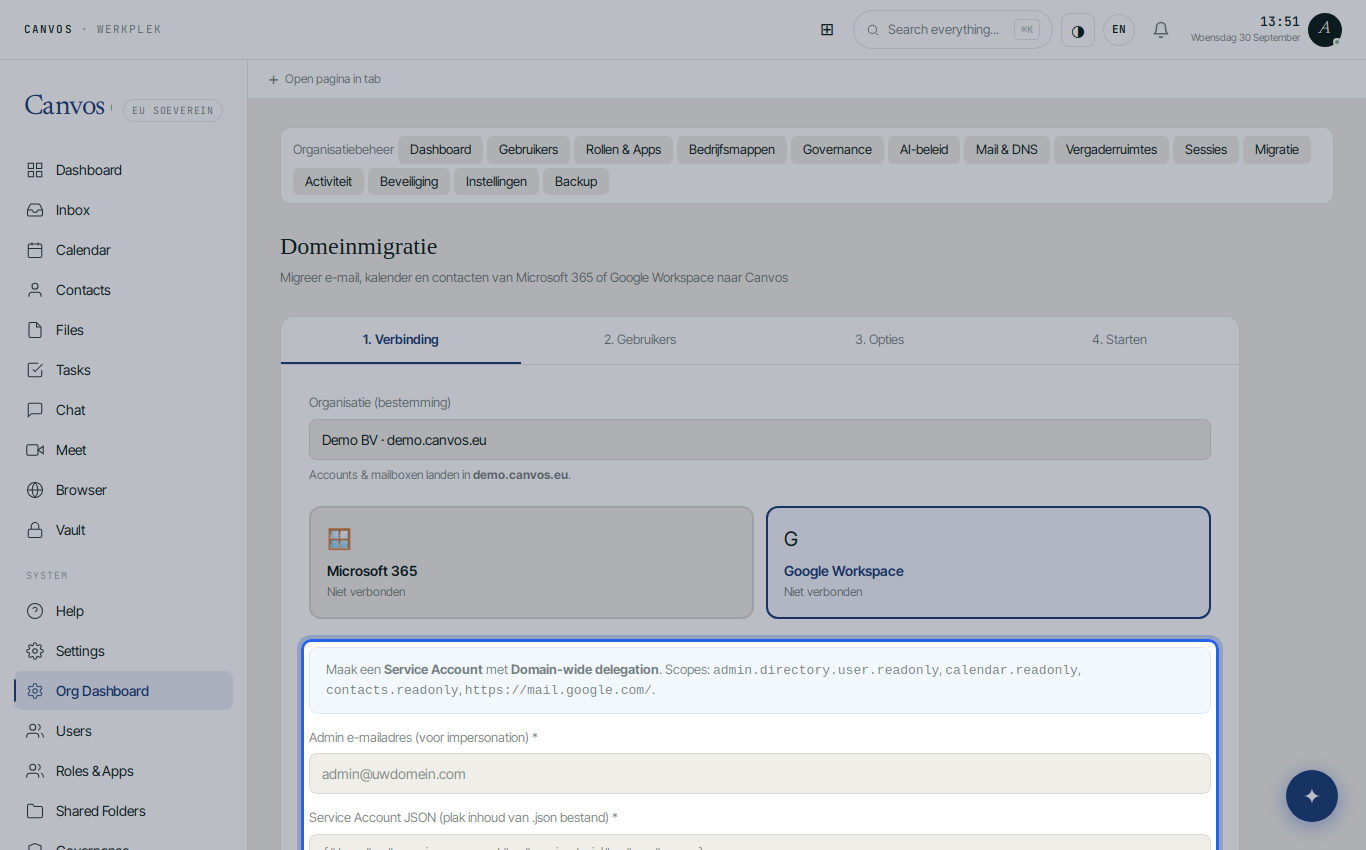
Go to Organisatiebeheer (organisation management), Migratie, and choose Google Workspace. In Google Cloud create a service account, enable domain-wide delegation and grant the scopes admin.directory.user.readonly, calendar.readonly, contacts.readonly and https://mail.google.com/ in the Workspace admin console. Enter an administrator's email address (for impersonation) and paste the contents of the JSON key file. Click Verbinden met Google Workspace (connect).
Fetch and map users
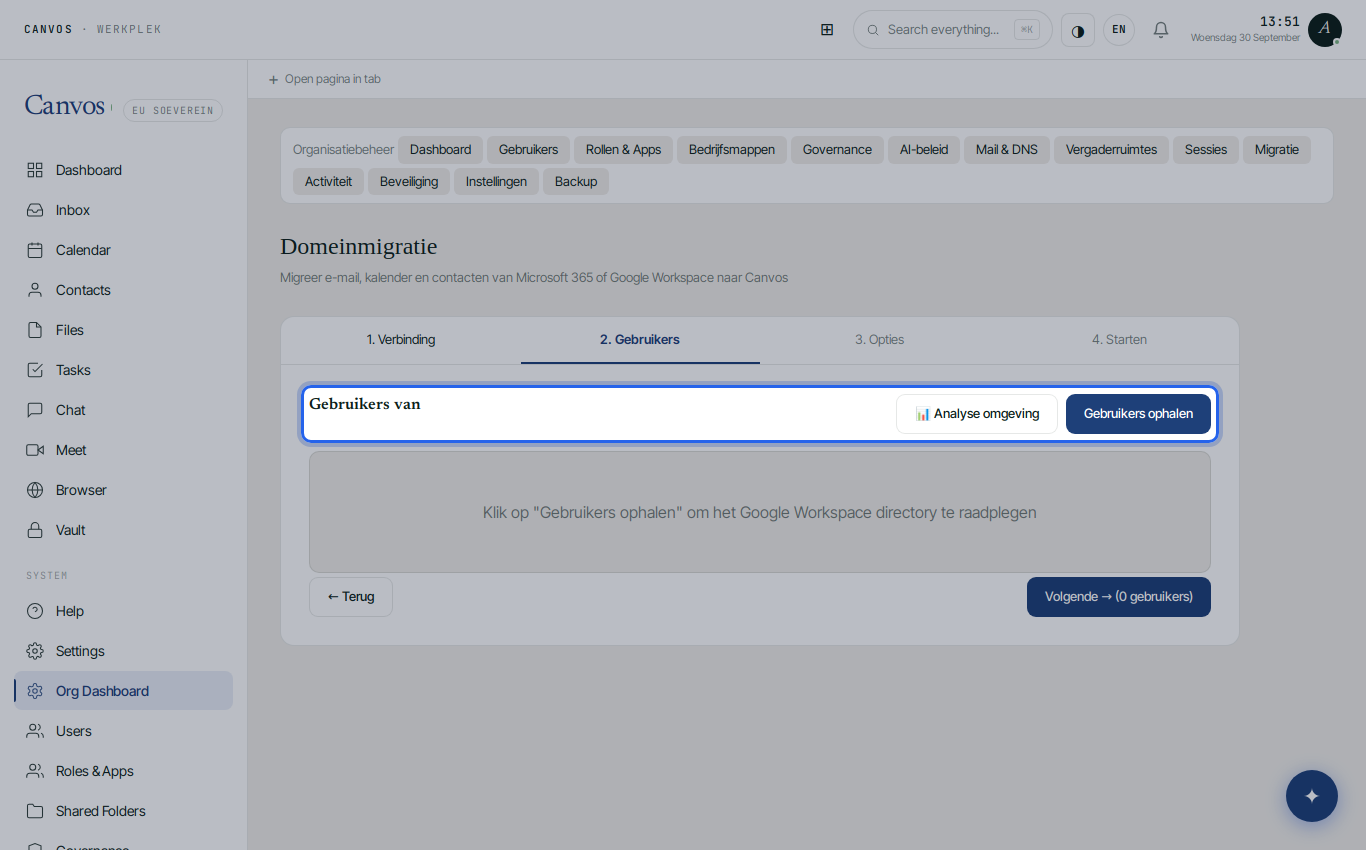
Click Gebruikers ophalen (fetch users). Canvos reads the Google directory and shows every user with a proposed Canvos username, which you can adjust per person. Choose who moves and review the estimate of mail and file volume per person.
Options: what moves
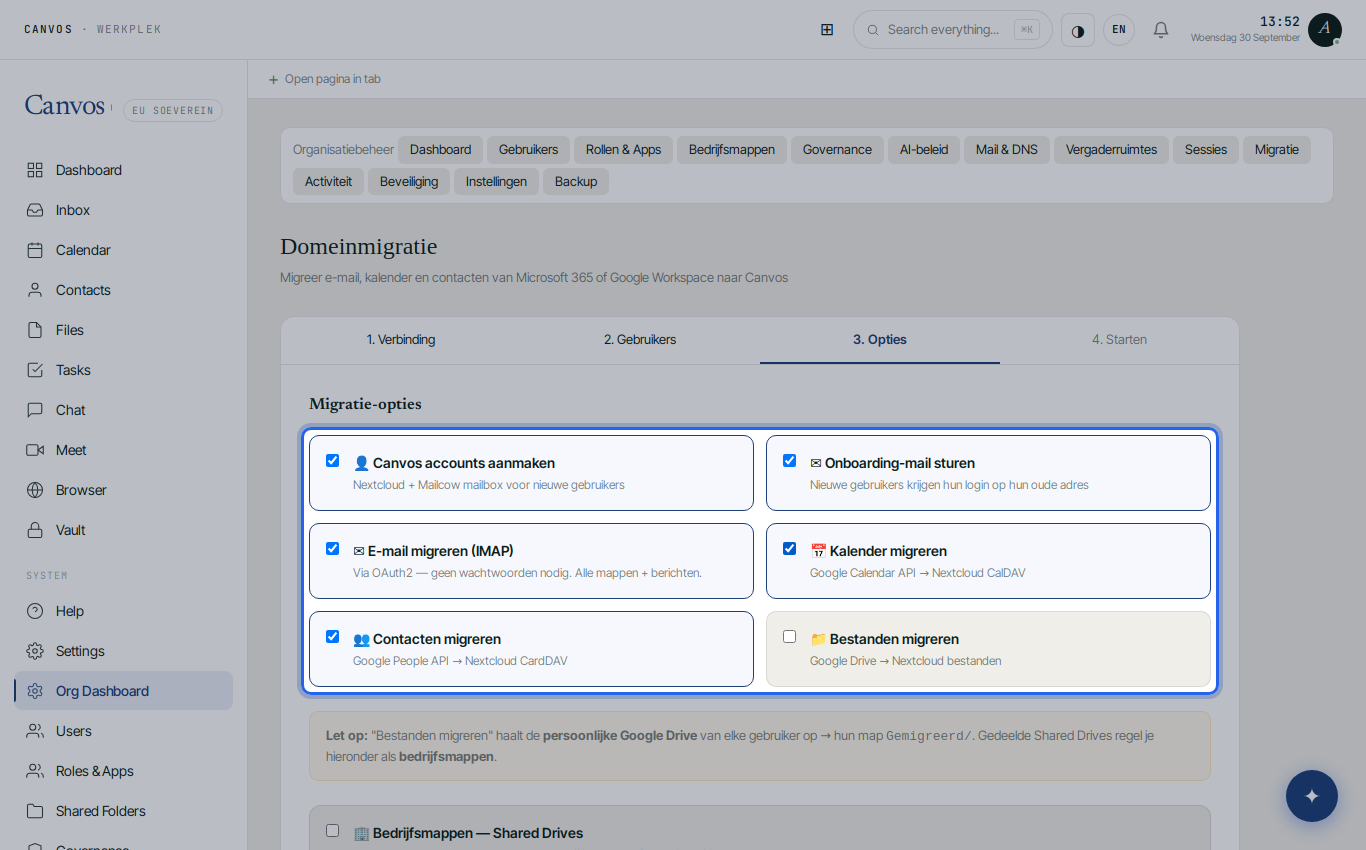
Choose what the wizard does: create Canvos accounts and mailboxes, send an onboarding mail to the old Gmail address, migrate Gmail over IMAP with OAuth2 (all labels as folders, all messages), Google Calendar via the Calendar API to the Canvos calendar, contacts via the People API to the address book, and each user's personal Drive to the folder Gemigreerd. Shared drives are fetched separately and linked as company folders to a group.
Overview and start, with continuous sync
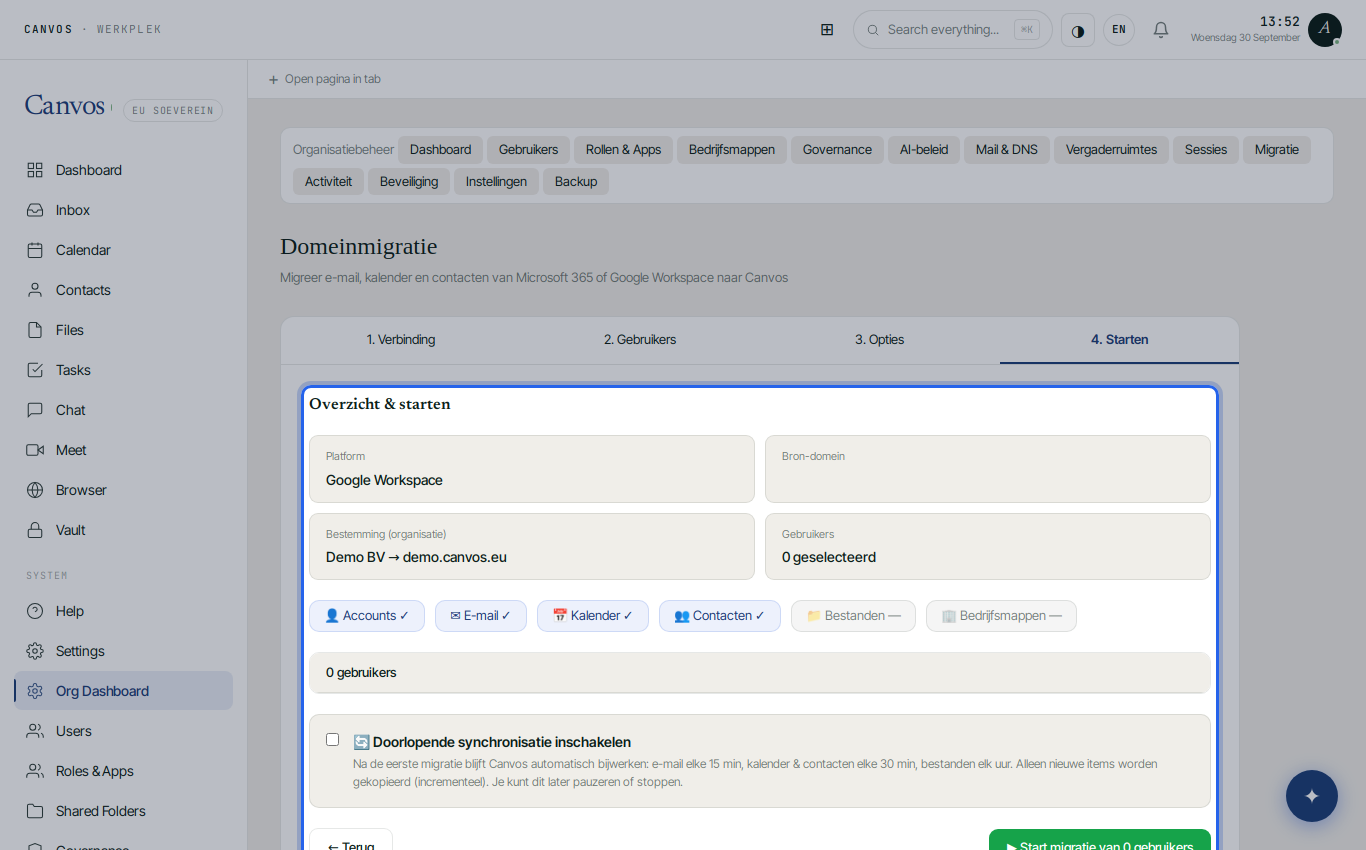
Check platform, source domain, destination and the number of users. Switch on Doorlopende synchronisatie (continuous sync) so new mail and changes keep arriving while your people keep working in Google. Click start and follow progress per task under Migratietaken. On switch-over day you point the MX records to Canvos and stop the sync.
FAQFrequently asked questions
Are my Gmail labels preserved?
Labels become folders in Canvos Mail. A message with several labels lands in the folder of its first label; search always finds it.
What happens to Google Docs, Sheets and Slides?
During the Drive migration they are exported to .docx, .xlsx and .pptx and are immediately editable in Euro-Office, together with colleagues. If you prefer open formats, save them in Euro-Office as .odt, .ods or .odp.
Do I need to program for the service account?
No. It is a task in the Google Cloud console and the Workspace admin console, done in fifteen minutes. The wizard shows the exact scopes; your IT partner or Canvos can do this for you.
Is there downtime?
No. Everyone keeps working in Google until you repoint the MX records. With continuous sync no mail is lost between the first migration and switch-over day.
What about Google Meet and Chat?
Canvos Meet and Chat replace them, on your own server. Chat history does not migrate; keep an export if you have a retention obligation.