Phishing works because a password alone is enough. With two-factor authentication that is over: whoever logs in must also show a code from an authenticator app. Canvos has it built in, together with a login log that records every attempt and a session overview that lets you log someone out remotely. These are exactly the basic measures NIS2 and CyberFundamentals ask of every organisation. In this guide An, organisation administrator of Demo BV, turns them on in four minutes. Note: the security screens are currently shown in Dutch; the captions translate every step.
Step by stepFive steps
1. Link an authenticator app 2. Activate 3. Log in with a code 4. Login log 5. End sessions
Link an authenticator app
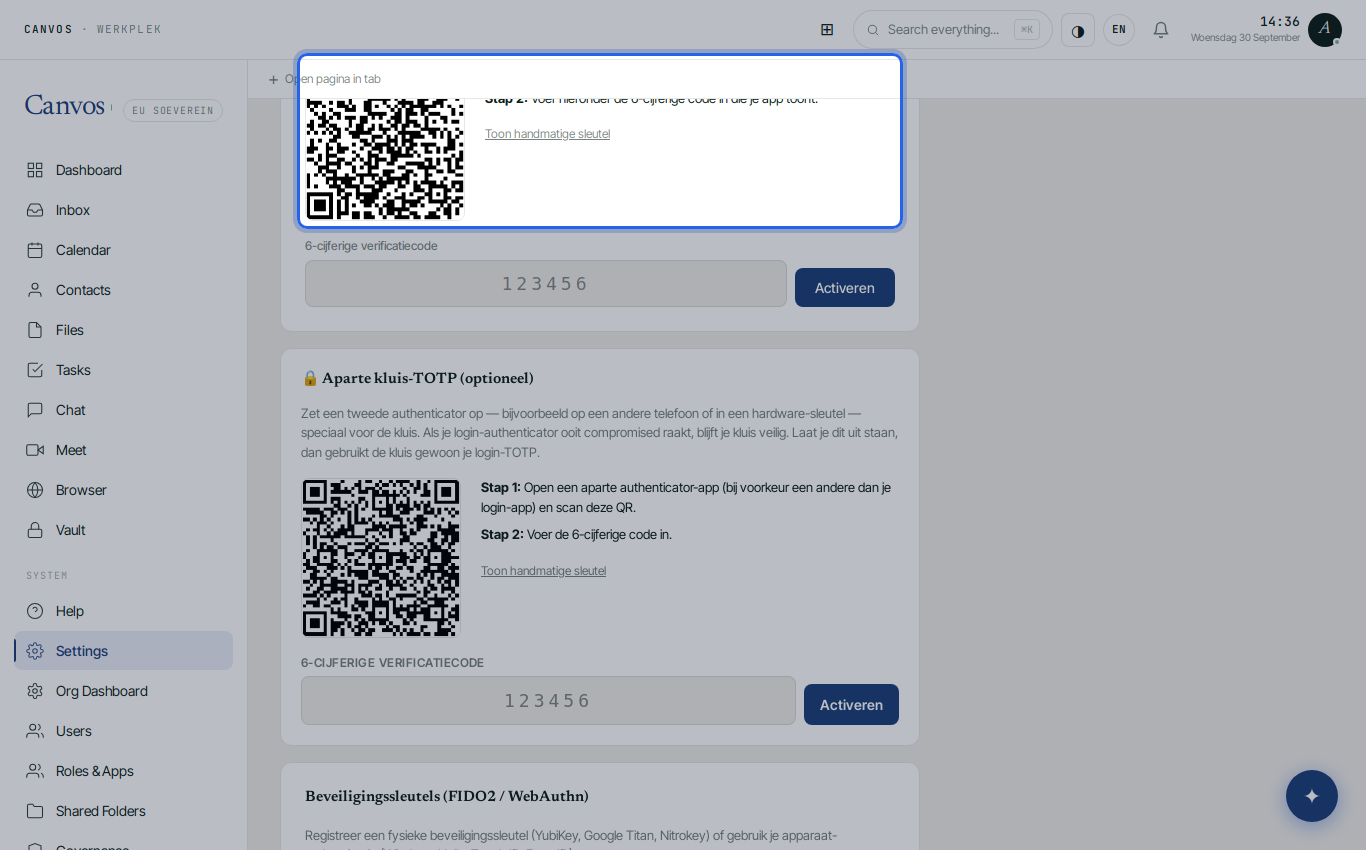
Go to Settings, tab 2FA, and click TOTP instellen (set up TOTP). Canvos shows a QR code. Scan it with a free authenticator app such as Aegis (Android), Raivo or 2FAS (iOS), or a password manager like KeePassXC or Bitwarden. The secret stays on your own server; no SMS or external service is needed.
Activate
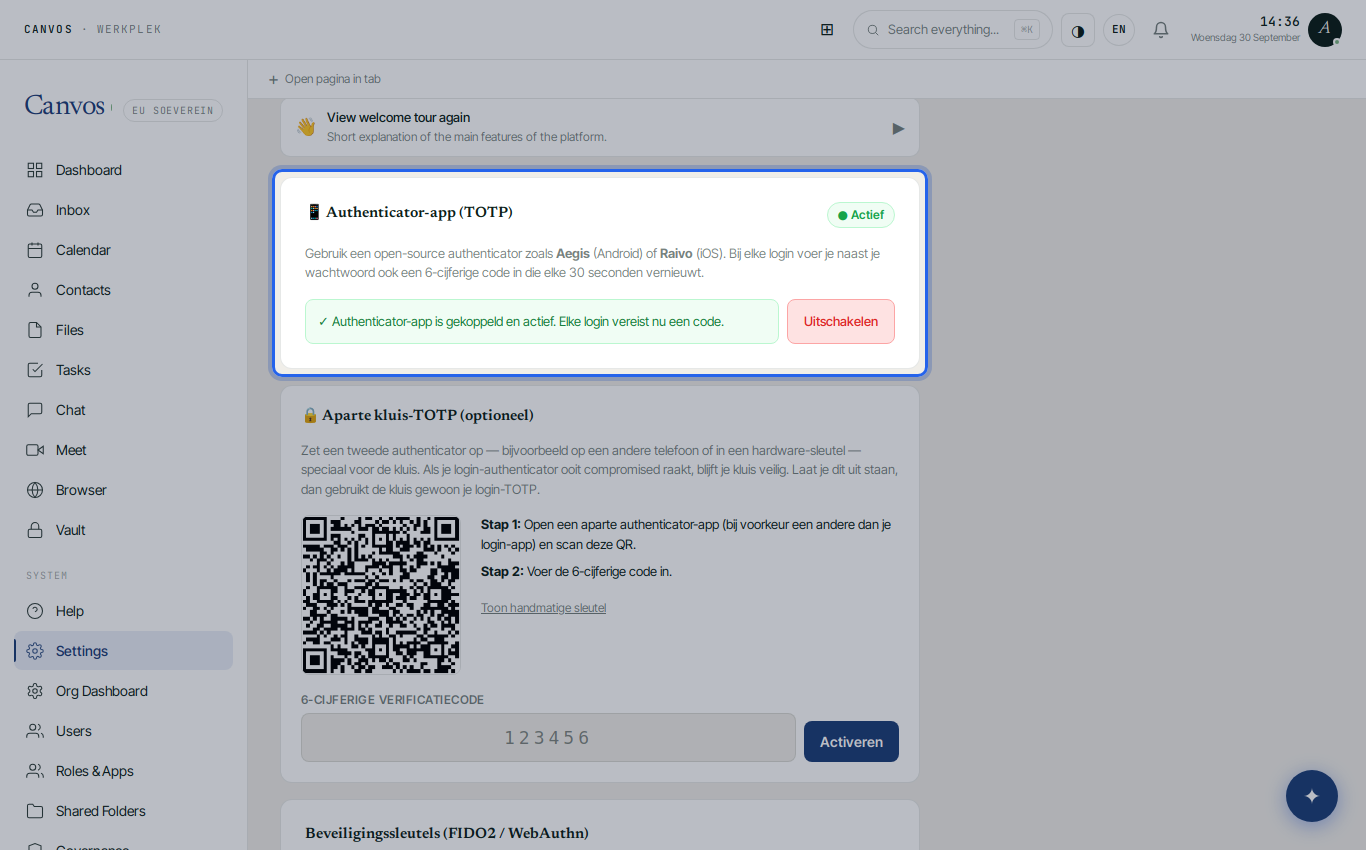
Enter the six-digit code your app shows and click Activeren (activate). The link is confirmed: from now on every login asks for password and code. Besides an app you can also register a hardware key (FIDO2/WebAuthn), for example a YubiKey.
Log in with a code
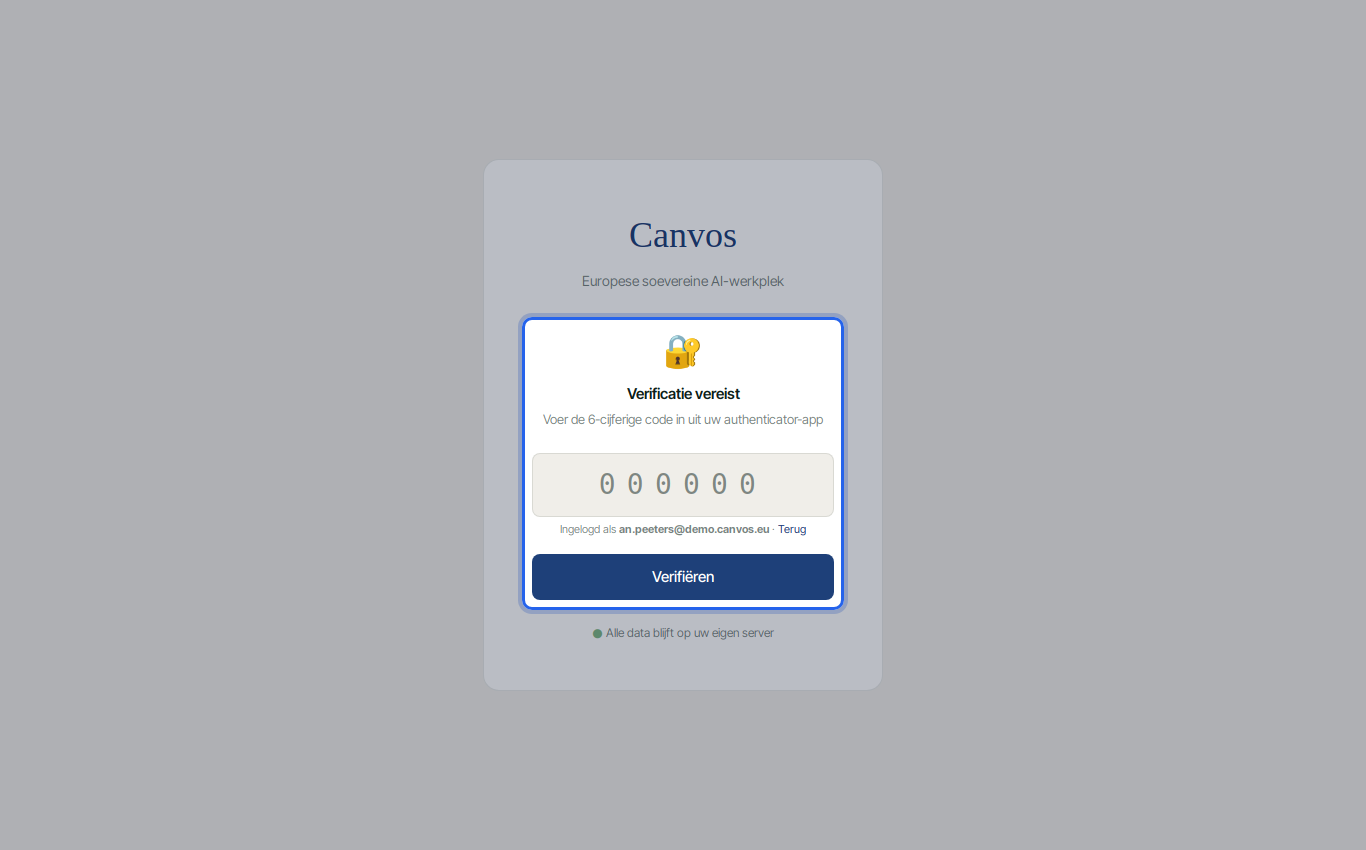
At the next sign-in you enter username and password as always. Then Canvos asks for the code from your app. Whoever only has your password gets no further.
Login log
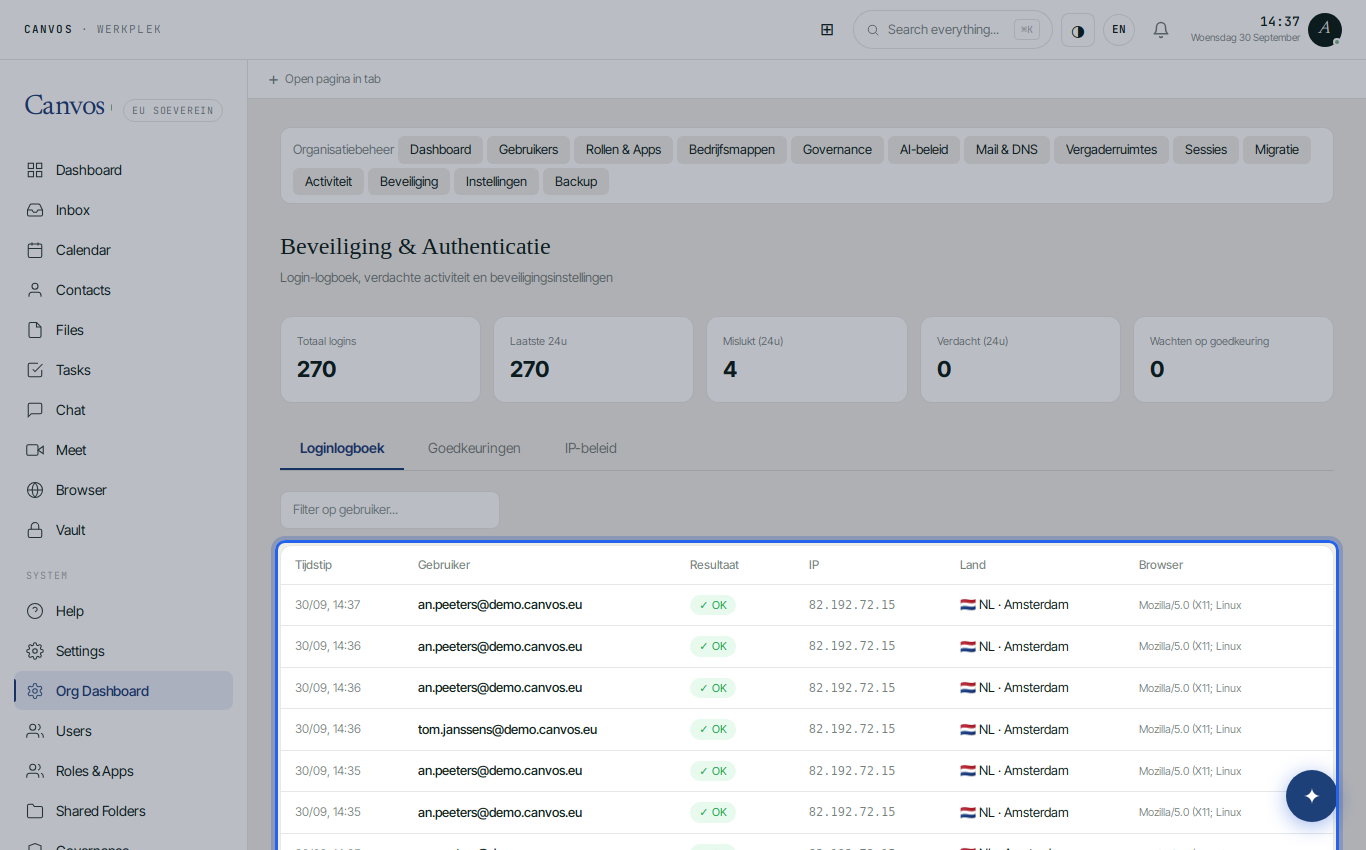
As administrator go to Beveiliging (security). At the top are the numbers: logins, failed and suspicious in the last 24 hours. Below is the log: every sign-in with user, IP address, country, browser and result. Repeated failed attempts automatically lead to a temporary lockout; a login from an unexpected country is flagged as suspicious and may require approval.
End sessions
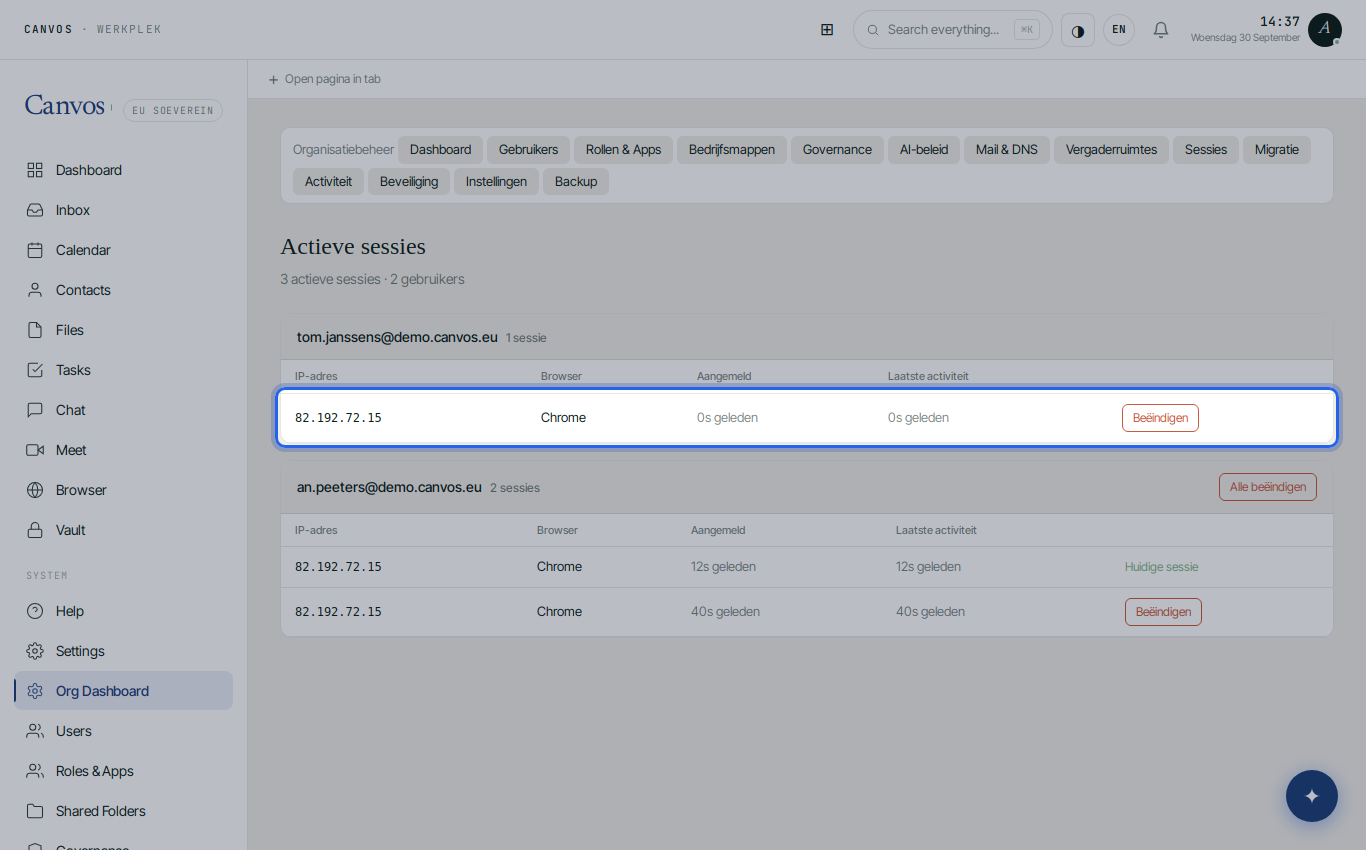
Under Sessies (sessions) you see who is logged in where, with IP and browser. Laptop lost or colleague gone? Click Beëindigen (end): that session is immediately invalid, on any device. Your own session is marked as the current session.
FAQFrequently asked questions
Which authenticator app do you recommend?
Any app that supports the standard TOTP protocol: Aegis or 2FAS on Android, Raivo or 2FAS on iOS, or the built-in function of KeePassXC or Bitwarden. Avoid apps that sync your secrets to a third party's cloud without you wanting that.
What if an employee loses their phone?
The organisation administrator can reset the second factor for that user and end the existing sessions. The employee then links a new app. Write that procedure into your security policy.
Does the code also apply to the vault?
The vault has its own separate TOTP link: even someone already logged in must show a second code for passwords and secrets. You set it up on the same 2FA page, under vault TOTP.
How long is the login log kept?
According to your organisation's retention policy. For a NIS2 audit we recommend at least twelve months. The log is also part of the encrypted backup.